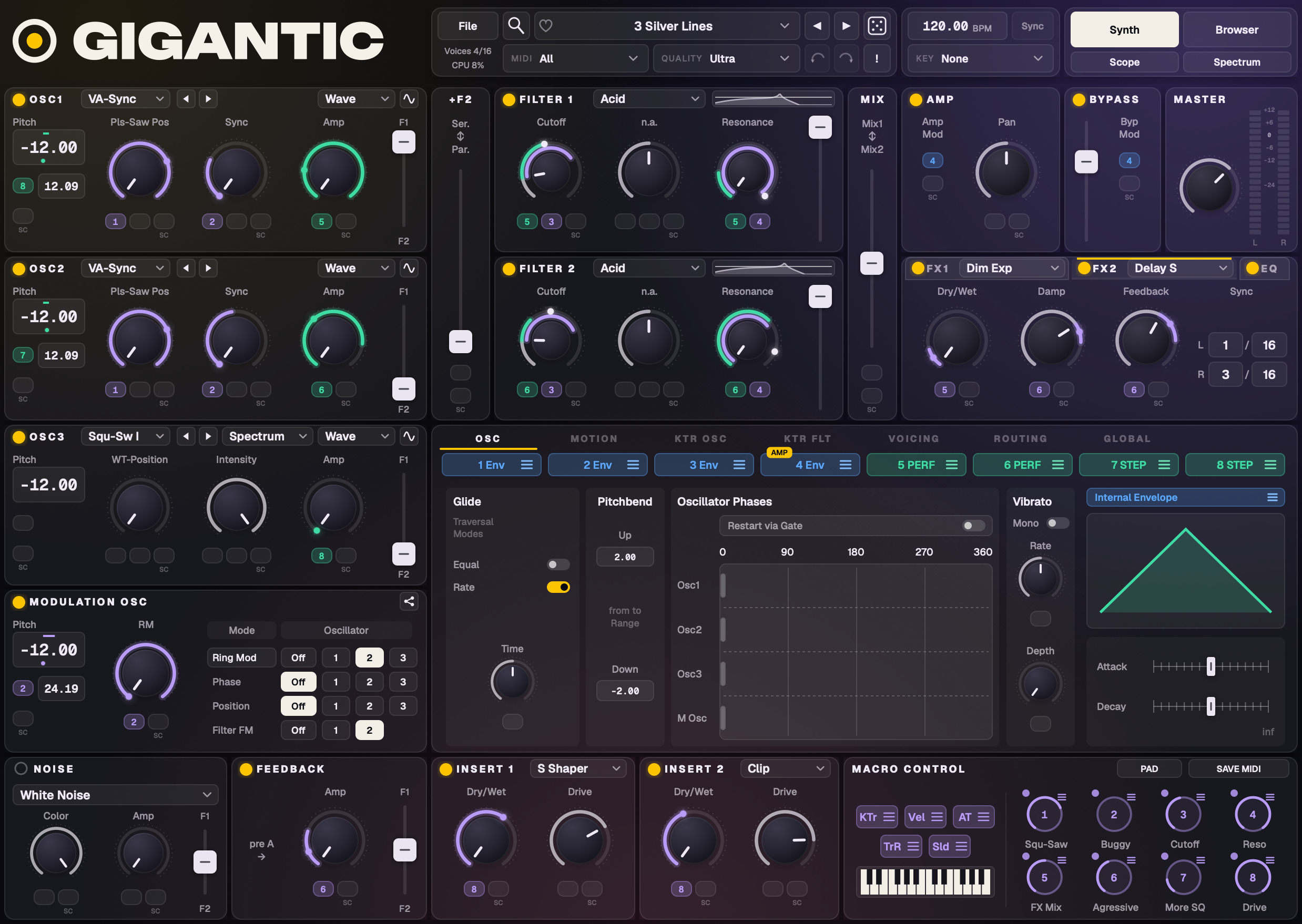
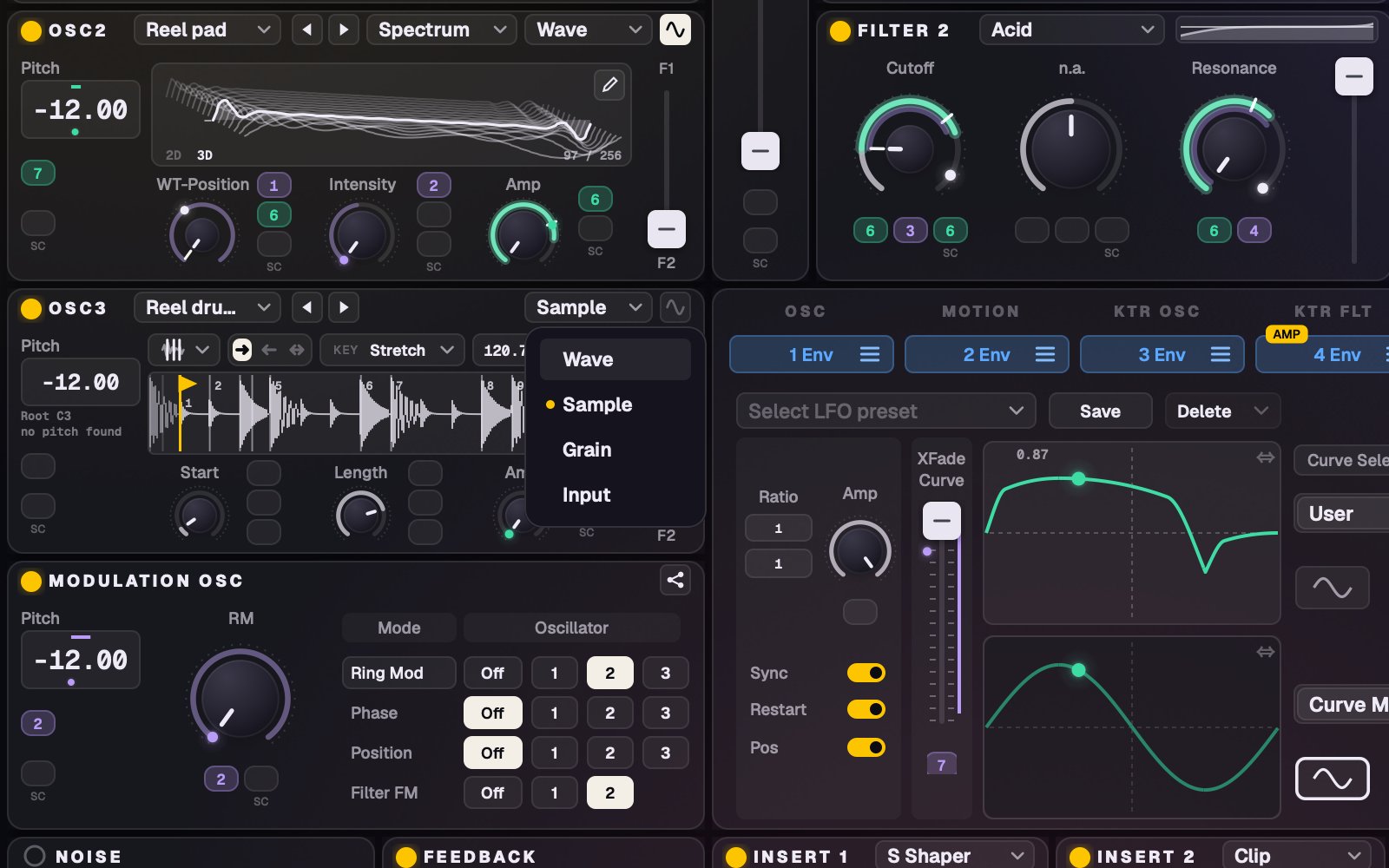
Gigantic is a new front end and host for your own licensed copy of Native Instruments Massive. Massive still makes every sound you know from it; Gigantic gives it a modern interface and a large set of new tools: samplers, granular and live audio in every oscillator, a wavetable editor, a macro pad that morphs and moves on its own, ratchets and drawn curves, a map of your sounds, and more.
This manual goes through Gigantic page by page. Start with Part 1 to install it and get playing; after that, dip in wherever you like. Every control also has a tip: hover over it.
Gigantic by The Signal Supply · thesignalsupply.com/gigantic
Install Gigantic, let it find your Massive, and get it into your DAW.
1What Gigantic is
Gigantic is a front end and host for your own licensed copy of Native Instruments Massive. It loads your installed Massive plug-in behind the scenes and gives it a new interface. Every knob you turn in Gigantic turns the same knob in Massive, and Massive still makes every sound you know from it: its oscillators, wavetables, filters and effects. You never need to open Massive's own window.
On top of that, Gigantic adds tools Massive never had. A few highlights:
Four sources in every oscillator: Wavetable, Sampler, Granular and Audio In. Drop any audio file on an oscillator.
Your own wavetables, drawn in a wavetable editor or made from any audio, and your own noises.
The macro pad and Motion: morph between four sets of macros, or let the dot move on its own in time with your song.
Ratchets, rests, skips, links, step lengths, key snap and drawn curves on the Performer and Stepper; drawn LFOs and curved envelopes.
Modulation you can see: live dots on every knob, playheads on every curve, a Mod map and an Audio path.
A new Browser with a Map of your sounds, previews, More like this, ratings, colours and your own banks.
MPE and poly aftertouch, MIDI Learn on every control, saved MIDI maps, four themes, and Gigantic FX: Gigantic as an audio effect.
Your presets stay yours. Everything Gigantic adds starts switched off or neutral. A Massive preset loaded into Gigantic plays exactly as it does in Massive, and Gigantic never changes your Massive files.
2What you need
Mac
Windows
System
macOS 12 (Monterey) or later. Made and tested on Apple Silicon (M1 or newer). It also runs on Intel Macs, but they aren't supported.
Windows 10 or 11, 64-bit.
Massive
Native Instruments Massive, installed and authorised in Native Access, with its VST3 plug-in (Gigantic uses it to play Massive's sounds).
Formats
Standalone app, AU and VST3, for both Gigantic and Gigantic FX.
Standalone app and VST3 (Windows has no AU), for both Gigantic and Gigantic FX.
Host
Any DAW that loads AU or VST3 instruments (Logic, Ableton Live, FL Studio, Cubase, Bitwig, Studio One and others), or just the standalone app.
3Installing on a Mac
Open your order email from The Signal Supply and download the Mac installer (the same link always has the newest version).
Open the .pkg and follow the steps. Under Customize you can untick formats you don't want.
It installs:
the Gigantic app, in Applications;
the AU plug-ins in /Library/Audio/Plug-Ins/Components: Gigantic (instrument) and Gigantic FX (effect);
the VST3 plug-ins in /Library/Audio/Plug-Ins/VST3: Gigantic and Gigantic FX.
Open Gigantic from Applications (or Launchpad).
To update, run the newer installer over the old one: your sounds and settings stay. To remove Gigantic, delete the app from Applications and the Gigantic files from the two plug-in folders above; your own folders (see Where your files are) stay until you delete them.
4Installing on Windows
Open your order email from The Signal Supply and download the Windows installer (.exe) (the same link always has the newest version).
Run it. If Windows shows "Windows protected your PC", click More info › Run anyway.
Pick Everything, or Choose to pick the parts. It installs:
the Gigantic app in Program Files\The Signal Supply\Gigantic, with a Start menu entry (and a desktop shortcut if you tick it);
the VST3 plug-ins Gigantic and Gigantic FX in C:\Program Files\Common Files\VST3.
Open Gigantic from the Start menu.
Close Gigantic (and your DAW) before installing an update, then run the new installer over the old one. To remove it, use Settings › Apps. Your own folders stay.
5First start: finding Massive
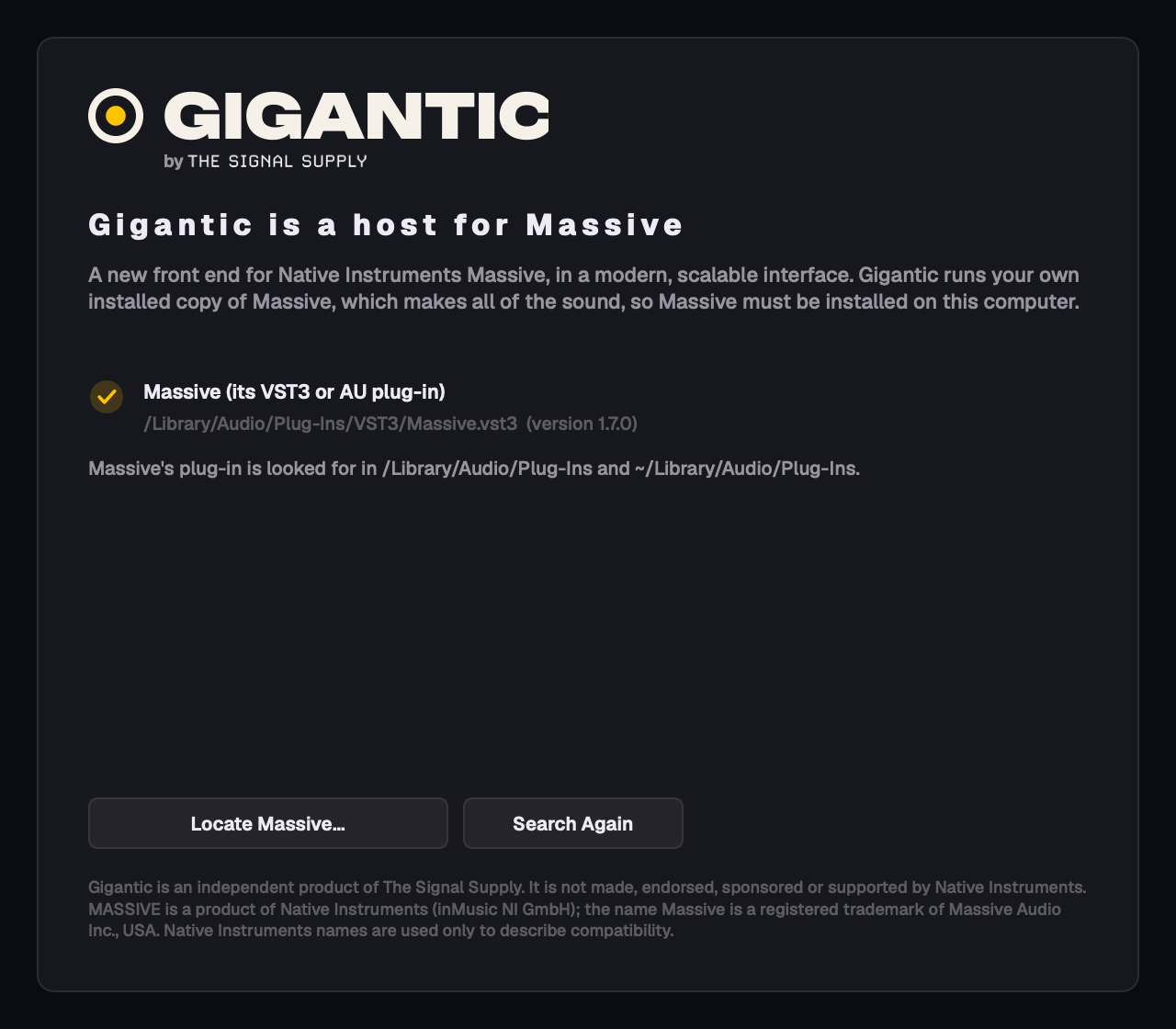
The first time it opens, Gigantic shows a welcome screen. It looks for your Massive, then shows the Terms and Conditions: scroll to the end and click Accept. That's it: the Synth view opens with Massive's New Sound, ready to play.
If Massive isn't found
Gigantic searches the usual plug-in folders, a few folders deep. If it can't find Massive, or Massive won't load, it says why and offers Locate Massive…: point it at Massive's .vst3 (or, on a Mac, its .component) wherever it is. Gigantic remembers it.
Only the AU installed? Gigantic tells you. Install the VST3 from Native Access.
Installed Massive after adding Gigantic to a project? Click Search in Gigantic's panel: it finds Massive without re-inserting the plug-in.
You can see the Terms again with File › Help › Terms and Conditions…, and bring the welcome screen back at the next start in Options › General.
When Massive can't be found, Gigantic says why and lets you locate it.
6Gigantic in your DAW
In your DAW's plug-in list, Gigantic is made by Signal Supply: look for Signal Supply: Gigantic (an instrument) and Signal Supply: Gigantic FX (an audio effect).
Logic: Gigantic is under Instruments › AU Instruments › Signal Supply. Gigantic FX goes on an audio track: Audio FX › Audio Units › MIDI-controlled Effects › Signal Supply.
Windows: use the VST3 versions; there is no AU on Windows.
Not in the list? Rescan your plug-ins, or restart the DAW.
The app and the plug-ins are the same Gigantic, with the same sounds, pages and features. More on projects, automation and Gigantic FX in DAW use and automation and Gigantic FX.
7Mac and Windows keys
Gigantic works the same on both. Where this manual says Cmd or Option, use Ctrl or Alt on Windows; Gigantic's own menus and tips already say so on each computer. Where it says Finder, read File Explorer.
What
Mac
Windows
Undo / Redo
Cmd+Z / Shift+Cmd+Z
Ctrl+Z / Shift+Ctrl+Z
Save / Save As
Cmd+S / Shift+Cmd+S
Ctrl+S / Shift+Ctrl+S
Fine adjustment while dragging
Shift-drag
Shift-drag
Cents on a pitch route, link drag, random start…
Option-drag / Option-click
Alt-drag / Alt-click
Reset a control
Double-click (or, if you turn it on in Options, double-click to type a value)
MIDI Learn, copy / paste a route
Right-click the control or mod slot
Play notes from the computer keyboard
The A key plays C3
Part 2
Around the window
The top bar, the File menu, the Synth view and the modulation you can see on every knob.
8The top bar
The top bar runs across the whole window, in both the Synth and Browser views.
GIGANTIC logo
Opens About Gigantic: the version, "Up to date" or the version available, Report a Bug, and Licences (the open-source software and fonts inside Gigantic).
File
The File menu. A small dot on it means there's something new for you: an update, or (in a DAW) a crash report waiting.
Voices · CPU
How many voices play now, out of the most that can play, and how much processing Gigantic uses.
MIDI channel
All, or 1–16: the MIDI channel Gigantic listens to.
Heart
Adds the loaded sound to your Favorites, or removes it (the Browser's heart follows). Greyed for New Sound or an unsaved sound.
Sound name, ◀ ▶
The loaded sound. Click the name for a list of sounds, or step through them with the arrows.
Dice
Loads a random sound from the Browser's list, never the one you have. The Browser jumps to it.
Quality
Ultra (as Massive plays, the factory sounds' setting), High or Eco (less CPU for Gigantic's own voices).
Undo / Redo
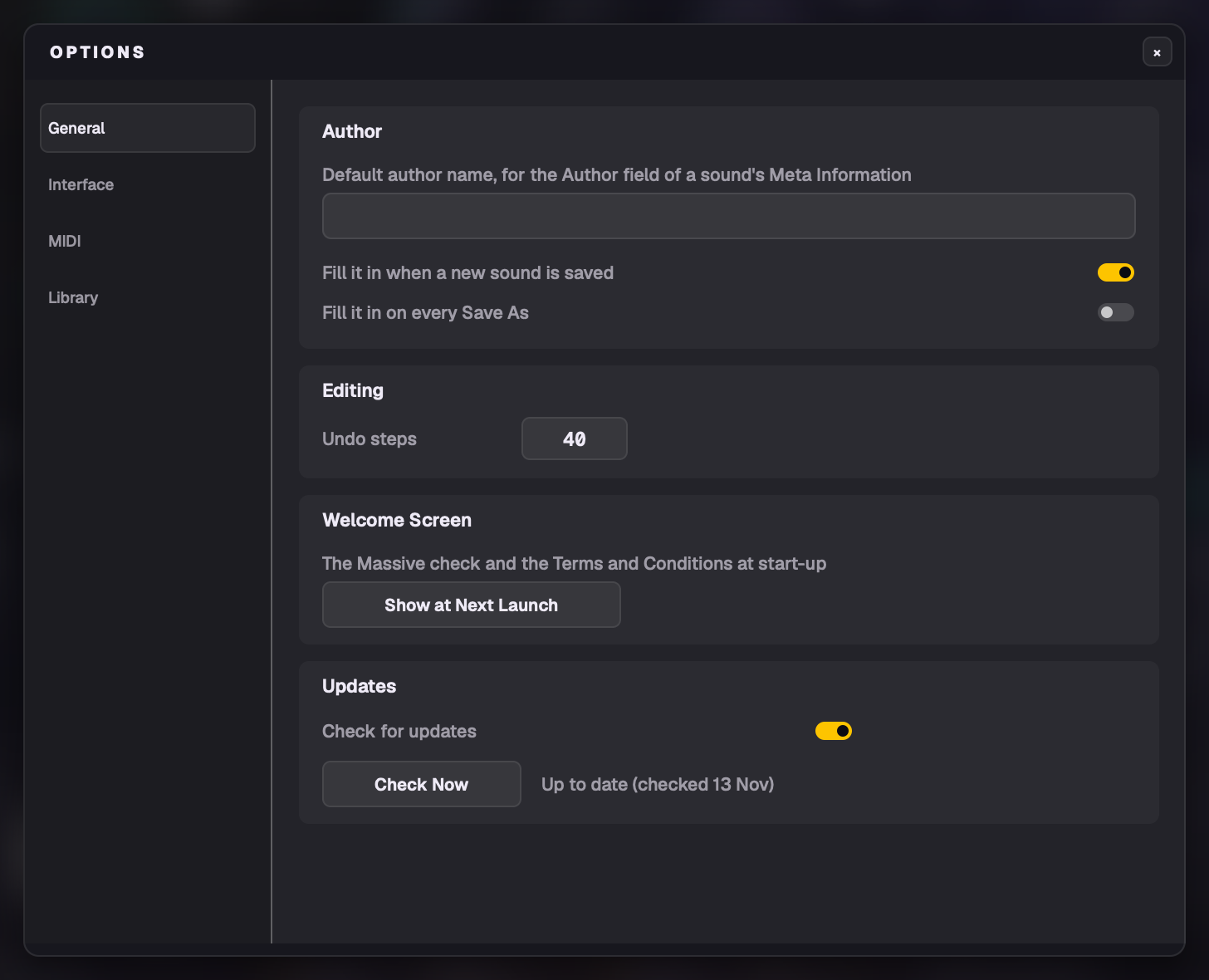
Steps back and forward through your edits: 40 steps by default, 1–100 in Options › General.
Tempo · Sync
The sound's tempo (Preset BPM). Sync follows your DAW's tempo instead. In a DAW, Sync starts on and stays as you set it for that plug-in; loading presets doesn't turn it off.
KEY
The global key and scale that Stepper and Performer slots can snap to (key snap). It's yours, not the sound's: loading sounds, the dice, New Sound and Undo never change it. DAW projects keep it, and the app remembers it.
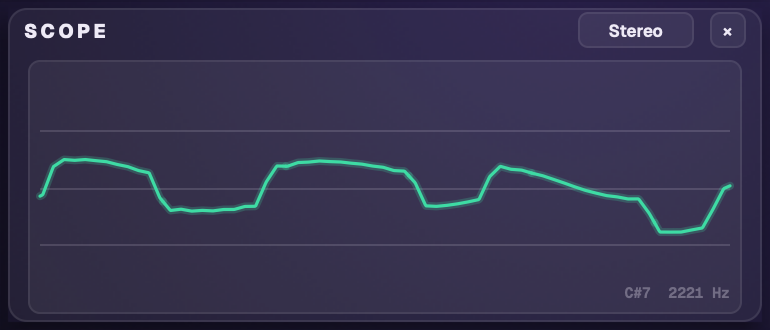
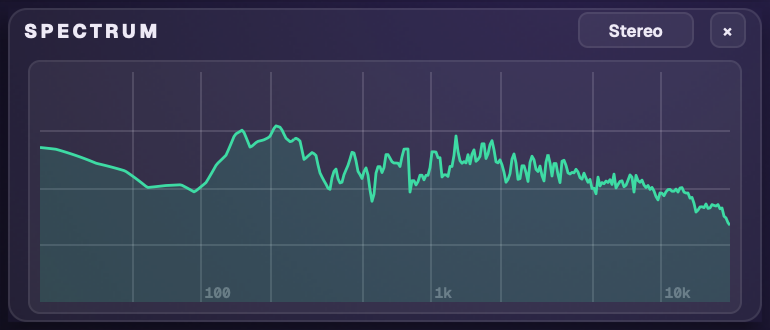
Opens the oscilloscope (the output's waveform, locked to the note's pitch) or the spectrum (20 Hz–20 kHz) in place of the FX row. Stereo shows left and right. Click again to close.
!
Panic: stops every note and every effect tail at once.
Scope: the output's waveform, locked to the note.Spectrum: the output from 20 Hz to 20 kHz.
9The File menu
Gigantic 1.x is available
Only when there's an update: opens the update panel (see Updates).
New Sound
Massive's own New Sound: OSC 1 alone on, all four slots LFOs.
Open Sound… · Recent Files
Open a .gigantic sound or a Massive preset (.nmsv).
Save · Save As…
Save the sound (Cmd+S, Shift+Cmd+S). Save As asks for the name, bank, type and a comment.
Options…
General, Interface, MIDI and Library settings (Options).
How fast knobs and boxes move when you drag them: 50% to 200%.
Show Tooltips
The hover tips on every control, on or off.
Show Keyboard
The on-screen keyboard. Shown in the app and hidden in the plug-ins by default; each remembers its own choice.
MIDI Maps
Load…, Save, Save As…, Delete… your MIDI Learn setups (MIDI maps).
Help
Manual, Quick Start (the PDFs installed with Gigantic; the website if they aren't there), Show Sounds Folder (your Music › Gigantic folder), About Gigantic, Email Support (a message to [email protected], the version in its subject), Terms and Conditions…
Report a Bug…
Send a report straight to The Signal Supply (Report a Bug).
Exit
The app only; in a DAW the host closes Gigantic.
10The Synth view
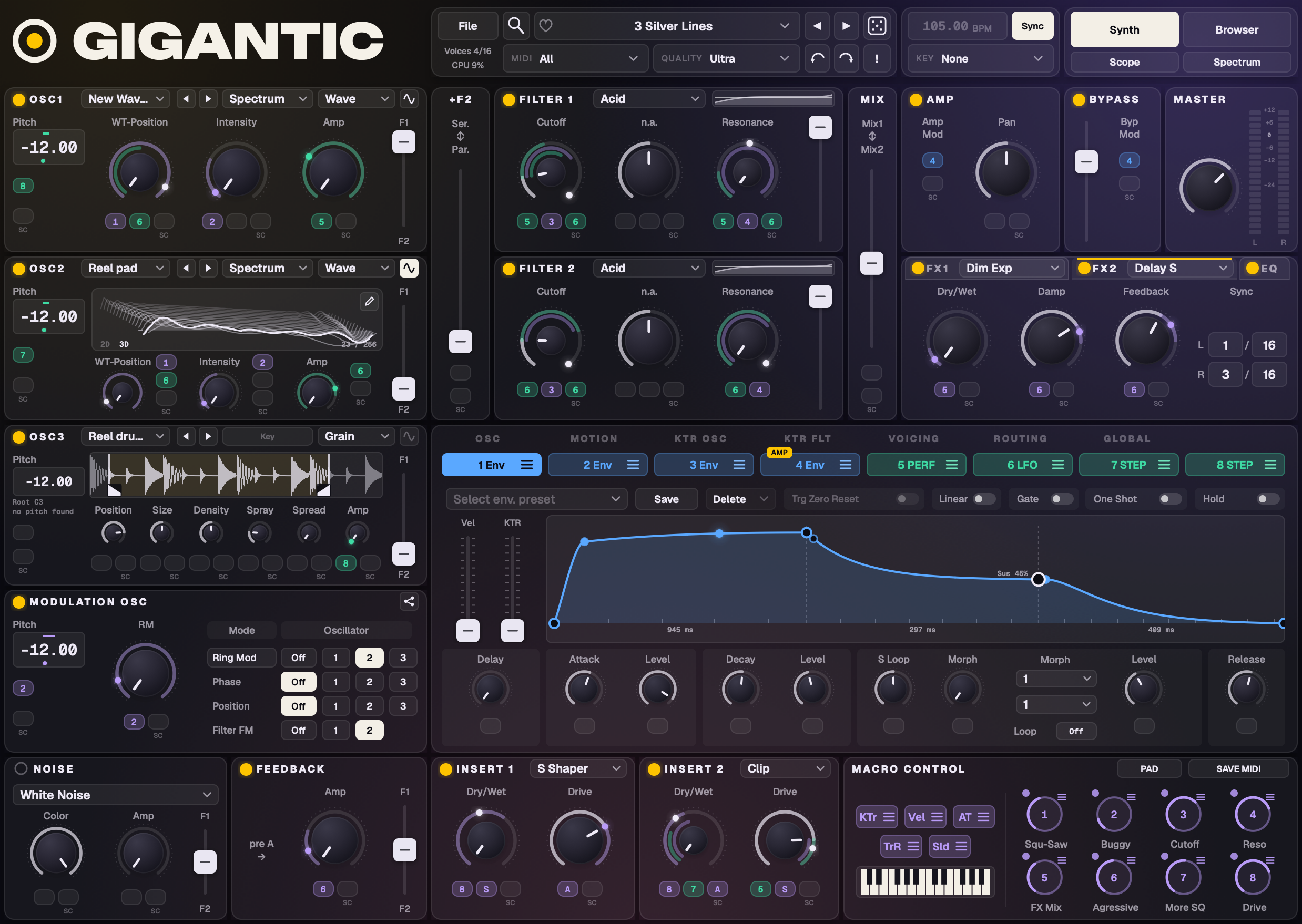
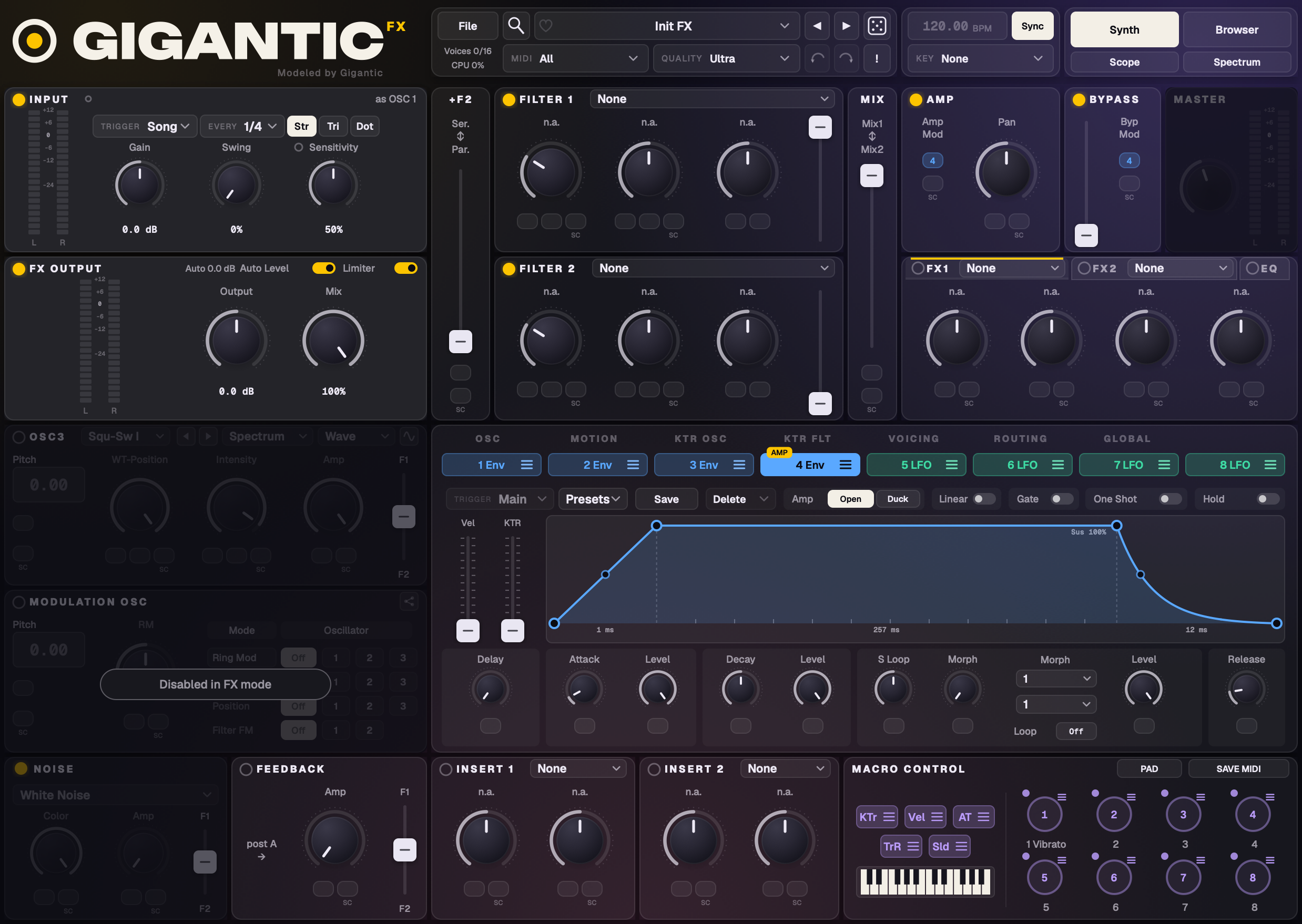
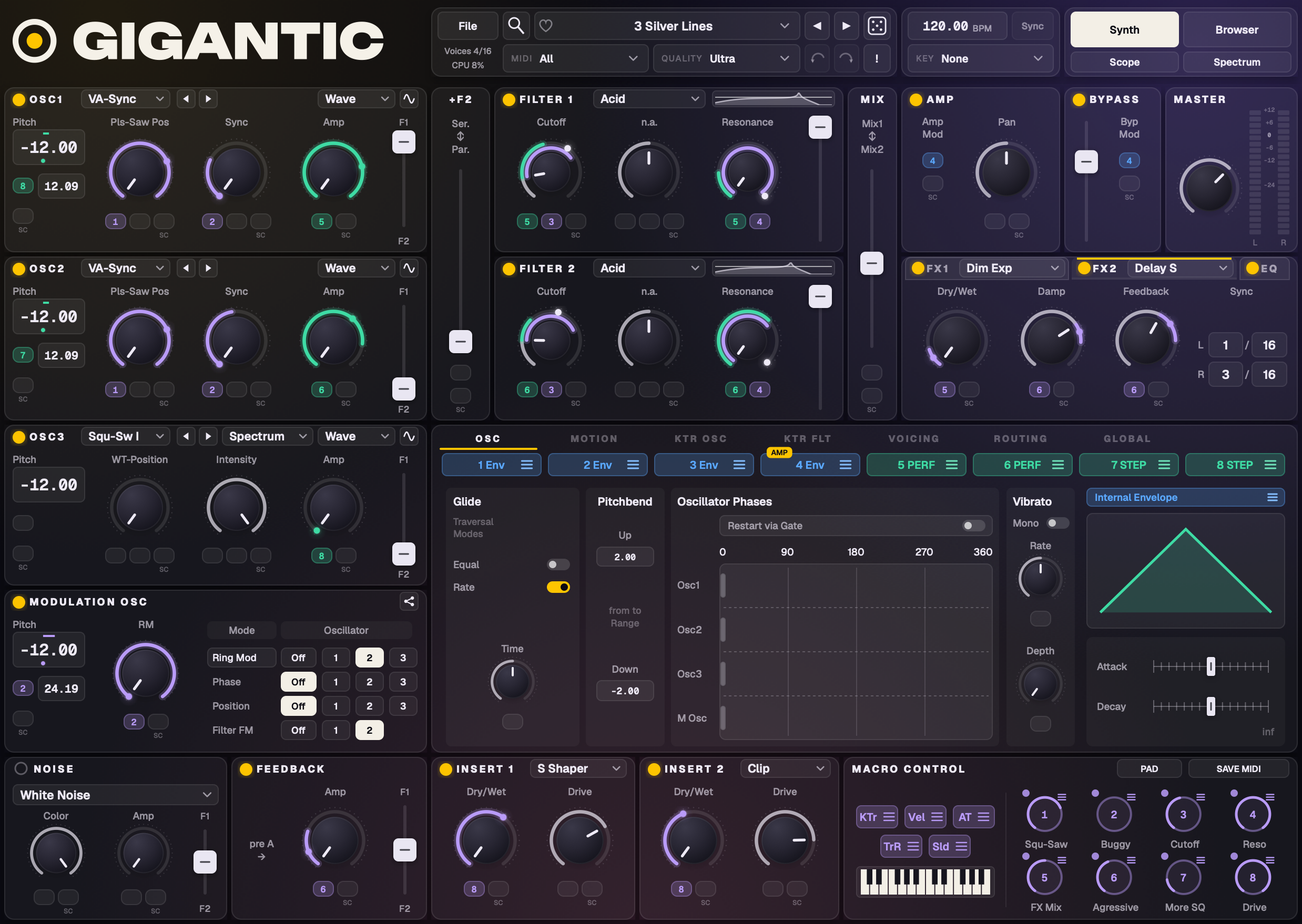
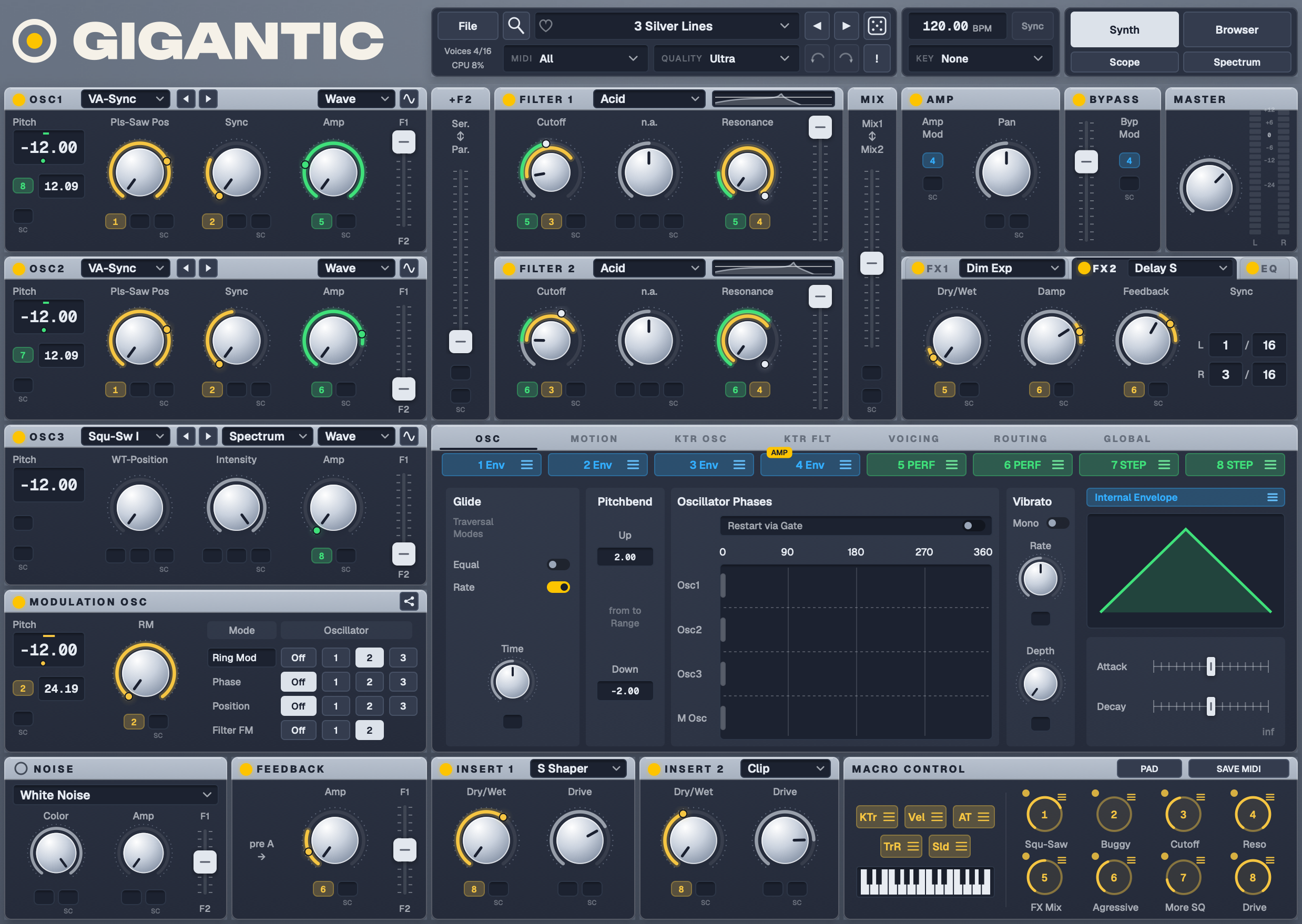
The Synth view: the oscillators on the left, filters and effects on the right, the centre pages in the middle and the macros at the bottom right.
The Synth view holds every control of the sound, laid out the way Massive users know it:
Right side: Filter 1 and 2 with Mix, Amp, Bypass and Master; Insert 1 and 2, FX 1, FX 2 and the EQ.
Centre: the page tabs and the source pills. The tabs are OSC (glide, vibrato, pitch bend, start phases), MOTION (the big macro pad), KTR OSC and KTR FLT (key tracking), VOICING, ROUTING and GLOBAL. Under them, the eight source pills: 1–4 Env and slots 5–8 (each an LFO, Performer or Stepper). Click a pill to open its page; drag it onto a knob to modulate that knob.
Bottom right:Macro Control, the eight macros, the PAD button and SAVE MIDI, with the KTr, Vel, AT, TrR and Sld sources.
Which tab is open is a view setting: it's never saved with a sound.
Filters, effects and their live graphs
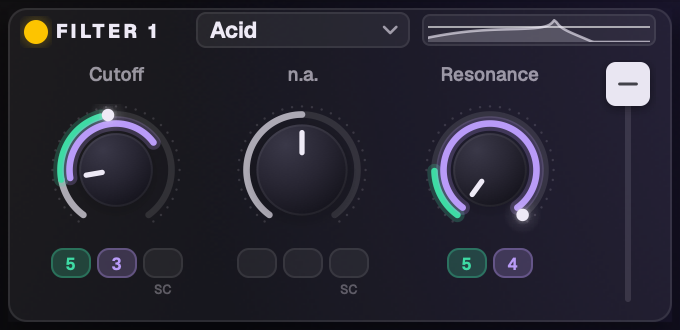
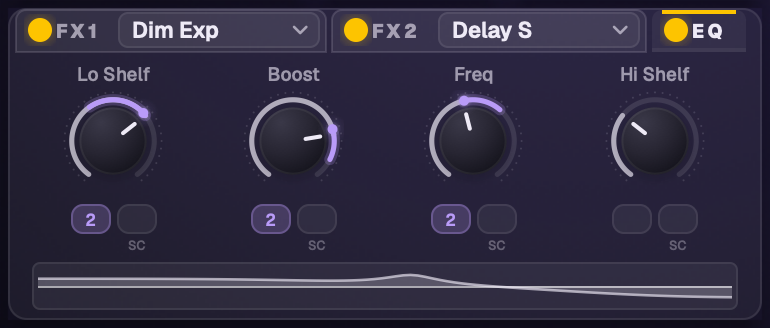
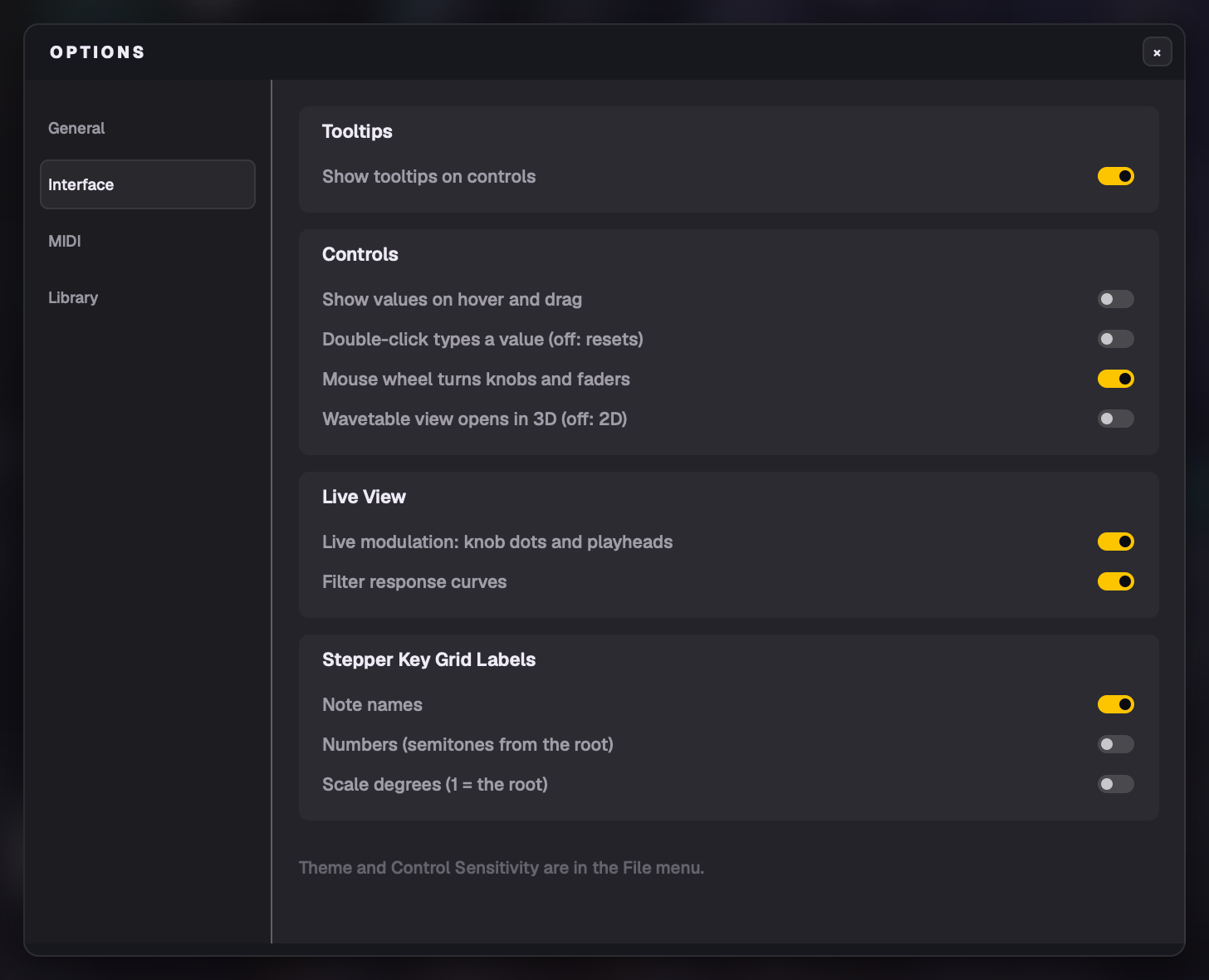
Each filter shows a small response curve beside its type menu. It follows the cutoff, resonance and bandwidth as they move, for every filter type. The FX panel's EQ tab shows the EQ's response along its bottom, following the bands as they're set or modulated. Both are display only, and Options › Interface › Live View turns them off.
The menus are as wide as their longest names, and every row of mod slots fits on one line.
A filter's response curve, live.
The EQ tab's response graph.
11Modulation you can see
Rings and live dots on the knobs, and the Mod map on the Routing page.
Making a route
Drag a source onto a knob: an envelope or slot pill, a macro, or KTr / Vel / AT / TrR / Sld. New routes start at 0: drag the amount up from there.
Pitch routes in semitones and cents: on a pitch box, drag the left of the number for semitones and the right for cents, up to ±64.
Double-click any mod amount, pitch box or pitch mod amount to reset it to 0.
Copy and paste a route: right-click a mod slot › Copy Modulation, then right-click another slot › Paste (the source, at no depth) or Paste with Settings (the same depth, polarity, mute and sidechain). The Mod map does the same: right-click a line to copy, a control to paste.
More mod slots: the Unisono Spread rows (Pitch / Cutoff, Wavetable Position, Pan) and each envelope's S Loop knob have a mod slot of their own.
Seeing it move
Rings: each route draws a ring on its knob, in its source's colour.
The live dot: while notes play, each modulated knob shows a glowing dot at its value right now, every route added up: in the source's colour with one source, white with several. Between notes the dot shows where the macros push the knob.
Every note: besides the newest note's dot, other notes that differ (poly aftertouch, per-note envelopes) each get a small faint dot.
The selected source stands out: with an Env or slot page open, or a macro under the mouse, that source's rings brighten on every knob it drives, with a small tick at its own share; the others dim.
Reach: once a source drives something, its three-bar drag grip becomes a small square showing how many knobs it drives. Hover it for the list.
AMP tag: shows which source drives the Amp now. Hovering a mod slot highlights its source.
Playheads run along the envelopes, LFOs and Performer lanes (see Part 4).
All of this is display only. Options › Interface › Live View turns the live dots and playheads off.
Part 3
Sound sources
Wavetables, samples, grains, live audio and noise: every oscillator can be any of them.
12Four sources in every oscillator
Each oscillator's header has a source menu: Wavetable | Sampler | Granular | Audio In.
Wavetable: Massive's wavetables, played by Massive itself, or your own.
Sampler: plays a recording, key-tracked, looped, one-shot or sliced.
Granular: plays a recording as a cloud of tiny grains.
Whatever the source, it runs through that oscillator's pitch, routing, filters, inserts, effects and modulation like any oscillator. The Wave | Sample switch at the top right flips an oscillator between its wavetable and its sampler; each side comes back as you left it.
The source menu: Wave, Sample, Grain, Input.
Drop any audio file on an oscillator
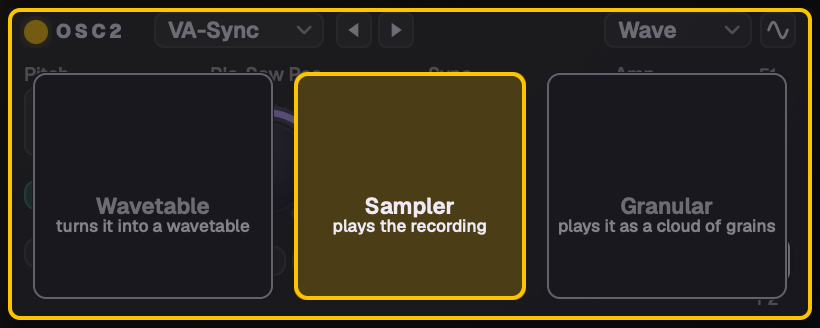
Drag an audio file from the Finder (or File Explorer) over an oscillator. Three targets appear, the one under the pointer lit:
Wavetable turns it into a playable wavetable (a real wavetable file loads as it is);
Sampler plays the recording itself;
Granular plays it as grains.
Each oscillator can hold a different source at the same time: a wavetable on OSC 1, a vocal loop on OSC 2, grains on OSC 3.
Drop targets over an oscillator.
Trial until you save. A dropped wavetable, sample or noise is a trial: it plays straight away, and it's kept when you save a sound that uses it. Anything you never save is cleared when Gigantic quits.
13Wavetables and the wavetable view
The wavetable view
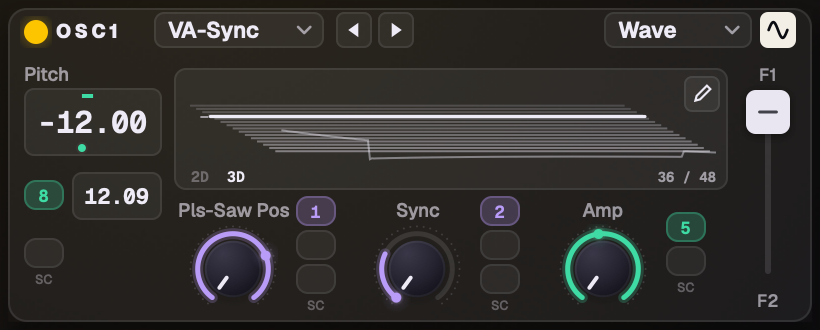
Click the small wave icon at the right of an oscillator's header: the knob area flips to a picture of its wavetable.
2D shows the cycle at the current WT-Position; 3D shows the whole table with the playing frame lit (Options › Interface can open it in 3D by default).
Drag across it to move WT-Position. While notes play, the lit frame follows the modulation.
Unison voices spread across the table show as small ticks (2D) or faintly lit frames (3D).
Every cycle starts at its start (a saw at its reset, a square at its edge), so the frames line up.
Click the icon again, or press Esc, to flip back. Your own tables get a pencil here, to edit them.
The wavetable view in 3D, the playing frame lit.
Your own wavetables
Make one by dropping audio on an oscillator's Wavetable target, or draw one in the wavetable editor.
They appear under User in the wavetable menu. The × beside one removes it (to the Trash / Recycle Bin).
Massive's Intensity modes (Spectrum, Bend +, Bend −/+, Formant) shape your tables just as they shape Massive's, with the Intensity knob and its modulation.
Unison on the Voicing page (voices, detune, pan, Wt spread, Chord, Restart via Gate) applies to your tables, samples and grains too.
Saved sounds and DAW projects carry your wavetables with them (see Saving and sharing).
14The wavetable editor
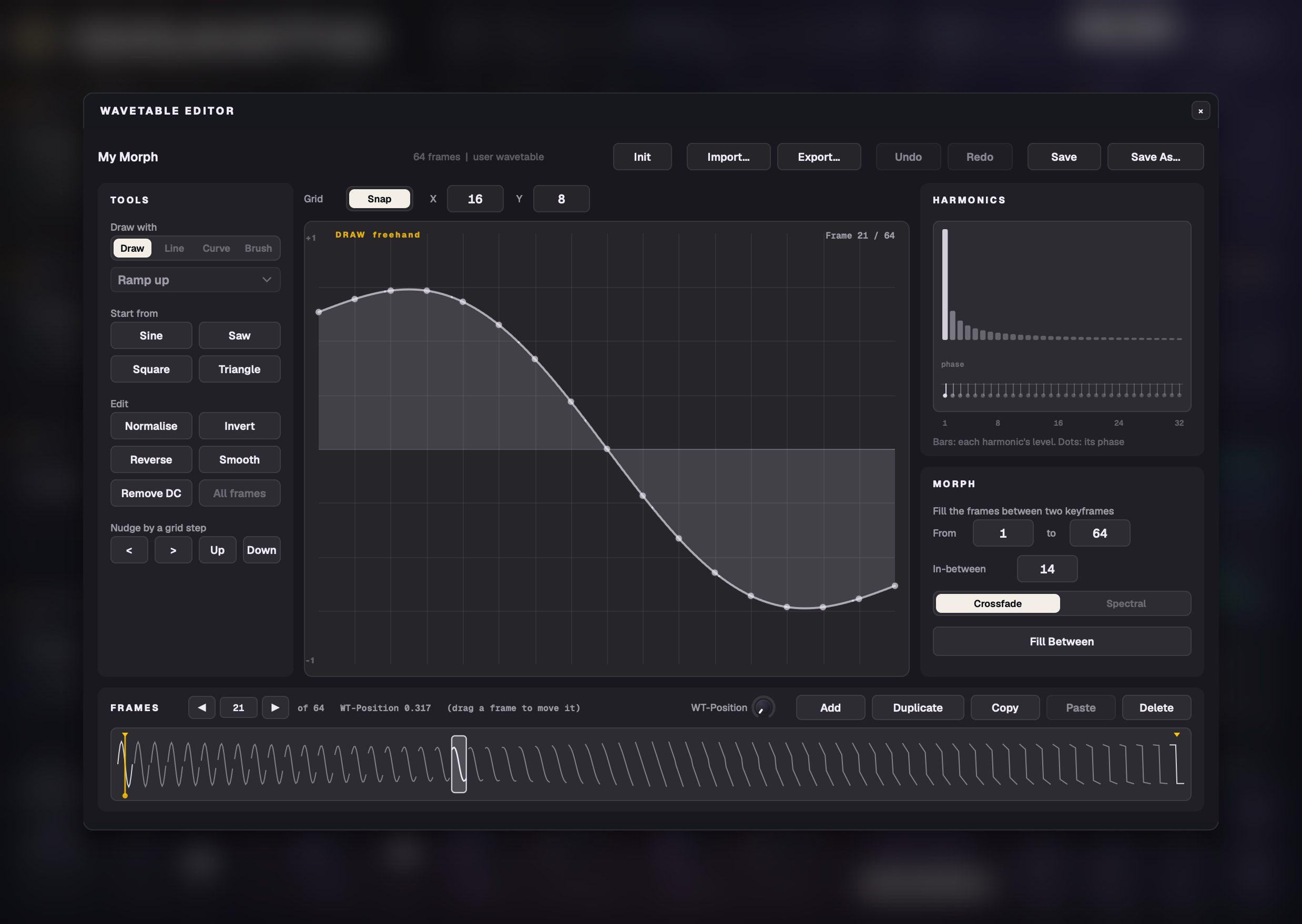
The wavetable editor: tools on the left, the drawing in the middle, harmonics and Morph on the right, frames along the bottom.
Open it with the pencil in the wavetable view, or New Wavetable… in the wavetable menu. On one of your own tables it edits that table; otherwise it starts a new blank one (Massive's own tables are never copied into it).
Play while you draw. MIDI, the computer keyboard and the on-screen keyboard all work with the editor open, and held notes change as you draw.
Drawing
Tools: freehand (a pen), Line and Curve (a dashed band shows the stroke as you drag), and shape brushes: flat, ramp up / down, S-curve up / down, arc, dip, steps and noise. Hover to see a ghost of the shape in the grid cell; click to stamp it, drag to stamp across cells. The tool in use is named at the drawing's top left.
Grid: set the X and Y divisions and snap to them. Nudge moves the wave one grid step.
Start from a sine, saw, square or triangle, or Init (one flat, silent frame).
Edit: Normalise, Invert, Reverse, Smooth and Remove DC, on the frame or on all frames.
Harmonics
A bar for each of the first 32 harmonics and a row for each one's phase, both draggable. The wave follows; everything above harmonic 32 stays as it was.
Frames and Morph
Frames: up to 256 along the bottom strip: add, duplicate, copy, paste, delete and drag to reorder. Prev / Next step one frame (hold to keep going, Shift-click for 10), as do the ←→ keys; click the frame number to type one.
WT-Position in the Frames bar is the oscillator's own knob: turn it while you play to hear the sweep. A yellow line shows where it plays, modulation included.
Fill Between turns the span between two frames (From and To) into a smooth morph of In-between frames (14 by default), adding frames as needed: two drawn frames become a 16-frame sweep in one click. Crossfade blends the waves point by point; Spectral blends their harmonics, usually smoother for musical sweeps. You can fill several spans in turn.
Import, export and saving
Import an audio file (made into frames) or a wavetable .wav from another synth. Export a .wav with 2048-sample frames that other wavetable synths read (Serum-compatible).
Save writes your table; Save As makes a new one under User. Undo and Redo (Cmd+Z, Shift+Cmd+Z) work inside the editor.
Close without saving and the oscillator keeps playing a trial copy of your edits.
15Sampler
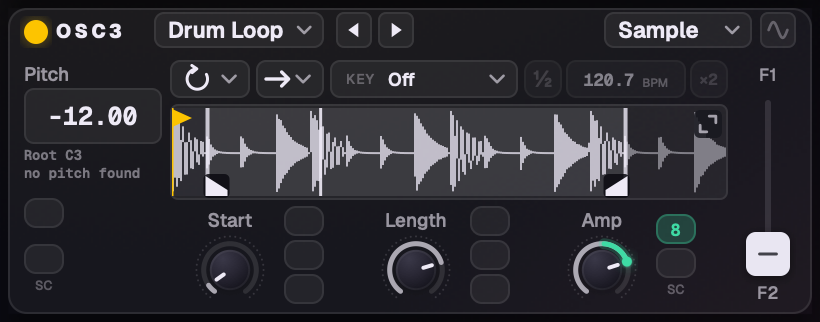
An oscillator in Sampler mode: the controls row, the waveform with its Start and End brackets, and Start, Length and Amp.
Loading a sample
Drop an audio file on the oscillator's Sampler target, or pick one of your samples from the source menu's Sampler column (the arrows step through them). Mono or stereo, up to a minute.
Smart defaults: a sustained sound loops its steadiest part after the attack; a hit or pluck is a one-shot over the whole recording. A loop (a beat, over a second) gets Sync, so it plays in time; a one-shot with no clear pitch (a kick, a noise) gets Key Off; a pitched one-shot gets Tape.
Even levels: every sample comes in at about the same loudness (around −18 dBFS RMS, peaks at −1 dBFS at most).
Stereo samples stay stereo through the filters, inserts and tempo-sync stretching.
The root note
Gigantic detects the sample's root note when you drop it (C3 when it has no clear pitch). Click the root line under the Pitch box for the root picker: Play a note (the next note from any keyboard sets it), Type a note…, Detected, or any of the 12 notes and octaves. The line reads "detected" or "set". Double-click it for the detected root again.
Start, Length and the waveform
Start and Length are the oscillator's own knobs (WT-Position and Intensity, renamed), so their mod slots, MIDI Learn and automation all work. Modulate Start to move the region while it plays: an LFO scans through the recording without changing its pitch; velocity can start hard notes further in. Short lengths swept by Start play like a wavetable made from the recording.
The waveform shows the Start and End brackets, a Play from flag (before Start it plays an attack first, then the loop), and a playhead for each voice. Markers are magnetic: dragged near each other they snap; hold Shift for no snap.
Random start:Option-click the Play from flag (a one-shot's start flag) and every note starts somewhere new in the region.
Sample gain: drag the waveform up or down (−24 to +24 dB, Shift for finer steps); a dB readout shows while you hover or drag. Double-click for the measured gain again.
The expand button opens a larger view over the three oscillators.
The controls row
Play mode
The first icon menu. One-shot (an arrow into a bar): plays the region once and stops. Loop (a loop arrow): loops, always crossfaded at the join so it never clicks; every note starts again from Play from. Run (the loop with a play triangle): the loop keeps running and new notes join it where it is, so a chord's notes stay in time with each other. Slice (a waveform with cut lines).
Direction
The second icon menu: → forward, ← reverse, ↔ ping-pong.
KEY
Off: every key plays the sample as recorded, at its own pitch and speed (only the Pitch box moves it). Lock: as recorded, locked to the song's tempo (drum loops). Tape: pitch and speed move together, the classic sampler. Stretch: the pitch moves and the speed stays, so notes keep their length. Sync: the pitch moves with the keys, in time with the song. Lock and Sync play at the sound's tempo (your DAW's with Sync to DAW, else the Preset BPM), stretched with the pitch kept. Bend, glide, vibrato, MPE and unison move the pitch in every mode.
½ · BPM · ×2
How fast the loop runs, starting at the tempo found from the file name or its beat. ×2 doubles it (double-time, the loop plays twice as fast), ½ halves it (half-time); typing works the same way, a higher number plays faster. It matters with Lock and Sync (it's dimmed without).
Stretch plays copies of the sample made for each key in the background, so it costs about what Tape does. With Run and Sync on, the loop follows the song's beat and stays in time with your track. For drums that must play to the end however short the key, set 4 Env to One Shot.
Your samples are kept in Music › Gigantic › Samples when you save a sound that uses them, removed with the ×, and stored inside DAW projects. The files carry a standard root note and loop, so other samplers read them too.
16Slice
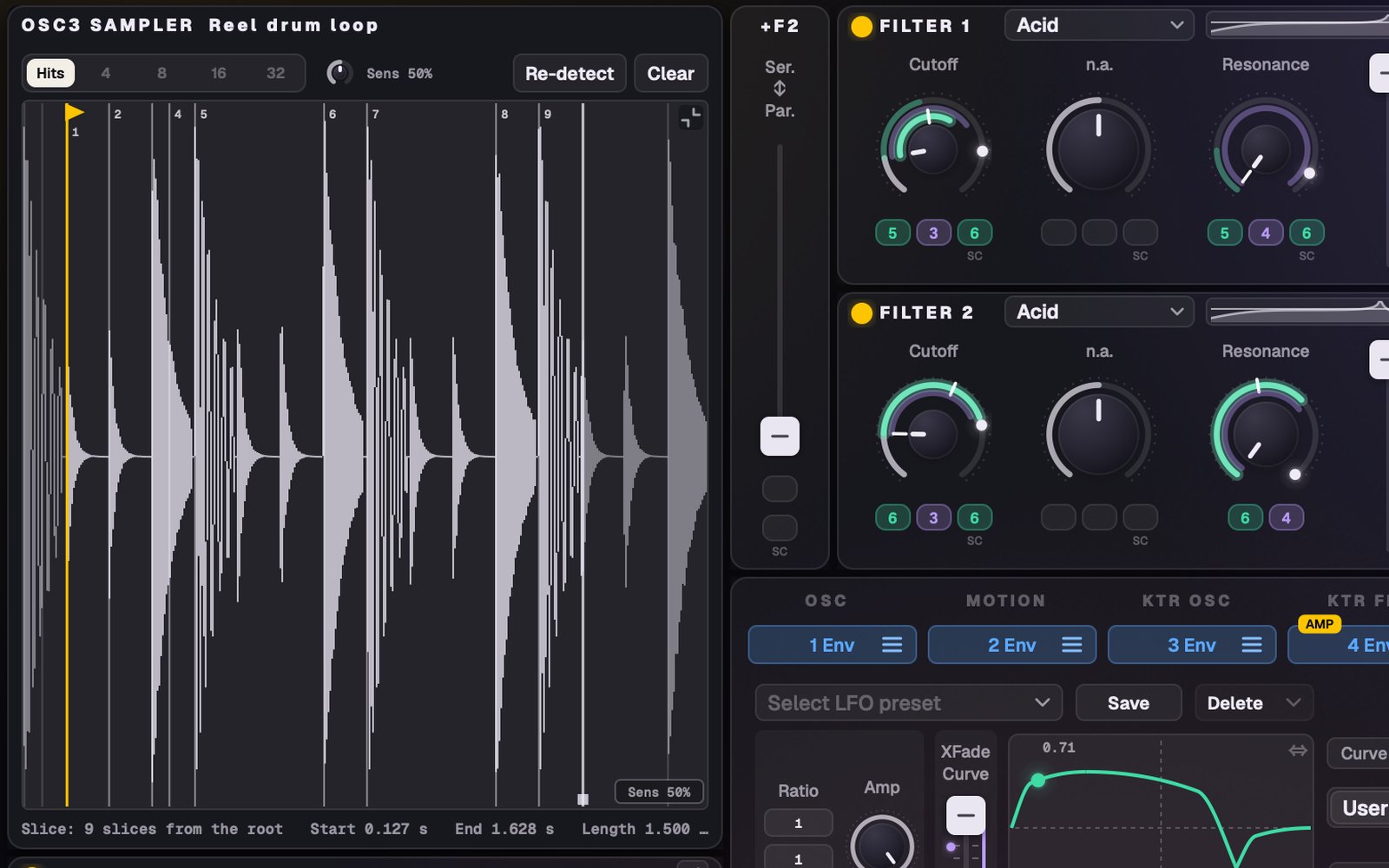
Slice in the large view: the sample cut at its hits, with Hits | Even, Sensitivity, Re-detect and Clear.
Pick Slice in the play-mode menu and the sample is cut at its hits, shown as thin lines on the waveform. Slice 1 plays on the root key, and each key up a semitone plays the next. Each key plays its slice once, ending at the next marker; every note is its own voice, so chords and rolls work. The playing slice lights up.
Markers: click the waveform to add one, drag to move it, double-click to delete it. They snap to the nearest zero crossing (Shift: right where you drop it). Start and Length still set which part is sliced.
Sens in the waveform's corner: drag up for more markers, down for fewer (double-click: 50%). Re-detecting keeps the markers you added or moved. Right-click it for Hits, Even 4 / 8 / 16 / 32 (equal slices), Re-detect and Clear; the large view has the same row under its title.
With Sync on the slices keep their timing at the song's tempo. Gain, Key, Tape / Stretch, unison and all modulation work as for one-shots.
17Granular
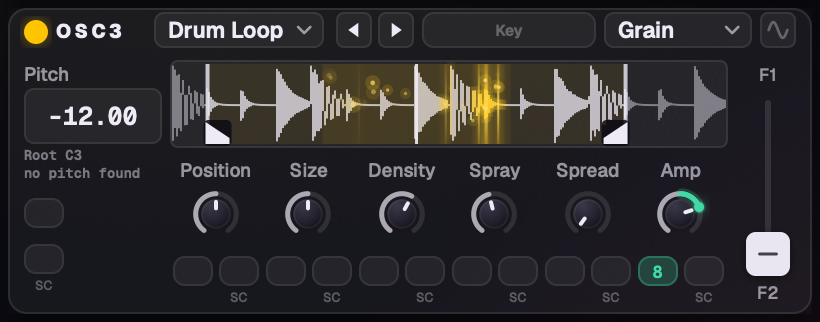
Granular plays a recording as a cloud of tiny grains, through the oscillator's pitch, routing and modulation. It loads like the Sampler: drop a file on the Granular target, pick from the Sampler column, and set the root with the root picker.
The waveform shows the grain range (Start and End, each with a foot to grab), each voice's position and the grains lit where they read.
One row of six knobs, each automatable with a mod slot and an SC slot: Position (where the grains read), Size, Density, Spray (how far they scatter), Spread (stereo width) and Amp.
Key (in the header, beside the arrows) makes the grains follow the keyboard from the root.
On the Voicing page, Wt spread moves each unison voice's Position.
An oscillator in Granular mode.
18Audio In
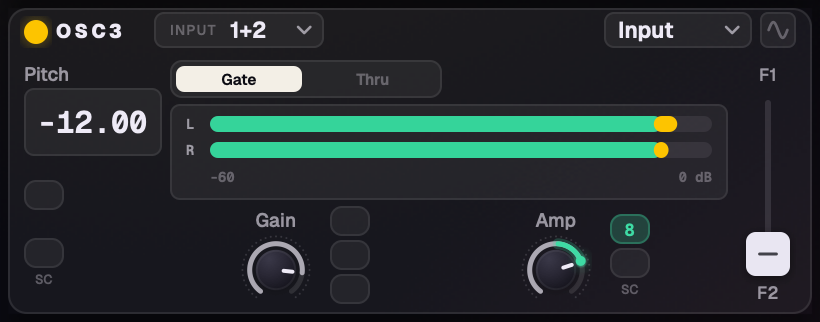
Audio In plays live audio through an oscillator: through its filters, inserts, effects and modulation.
Where it comes from: in a DAW, the plug-in's sidechain input (the VST3, and Gigantic FX in any format). The AU instrument has no input, so in Logic use Gigantic FX. In the app, the input device chosen in Audio and MIDI Settings (macOS asks for microphone access the first time).
INPUT in the header picks the channels: 1, 2, 1+2, 3, 4, 3+4 and so on. One channel plays mono, a pair stereo.
Gate: each note plays the input through its own voice and filters while you hold it. A comb or resonant filter then "plays" the input at the note's pitch: try it on vocals or drums. Thru: the input passes all the time, like an effect.
Gain (silence to +12 dB, modulatable) and small level meters.
One oscillator at a time can be Audio In; the others grey it out.
An oscillator in Audio In mode.
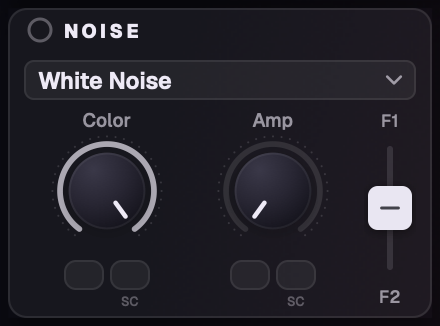
19Noise
Massive's own 12 noises, played by Massive, in a menu wide enough for the whole name.
Your own noise: drop any audio file on the Noise panel and it becomes a seamless looping noise (up to 10 s). It's listed under User in the Noise menu, kept and removed like your wavetables.
A route on the Noise Amp (velocity, an envelope, an LFO) sets your noise's level per note.
The Noise panel.
20Modulation Osc, filters and effects
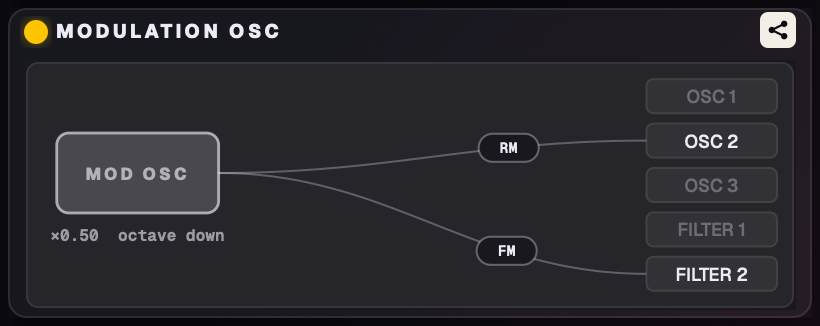
The Mod Osc diagram
Click the node icon at the right of the Modulation Osc's header: the panel flips to a picture of what it modulates. A line runs to each oscillator or filter a mode targets, labelled RM, PM, Pos or FM, brighter and thicker for more. The Mod Osc's pitch shows as a ratio to the note (×2.00 is an octave up).
Drag a line up or down to change its amount (Option for fine moves; double-click resets).
Click a mode's label to jump to its knob, or the icon to flip back.
The Mod Osc diagram.
Your sources through the filters and effects
Samples, grains, Audio In, your own wavetables and your own noises play through the same filters, inserts, Feedback, FX and EQ as Massive's oscillators, with the Modulation Osc (ring, phase, position, filter FM) on them too. Glide, vibrato and their routes work on them as well. See Per-note extras, CPU and "Modeled" for how this works.
Part 4
Movement
Envelopes, LFOs, Performer and Stepper, key tracking, voicing, routing, randomize, macros and Motion.
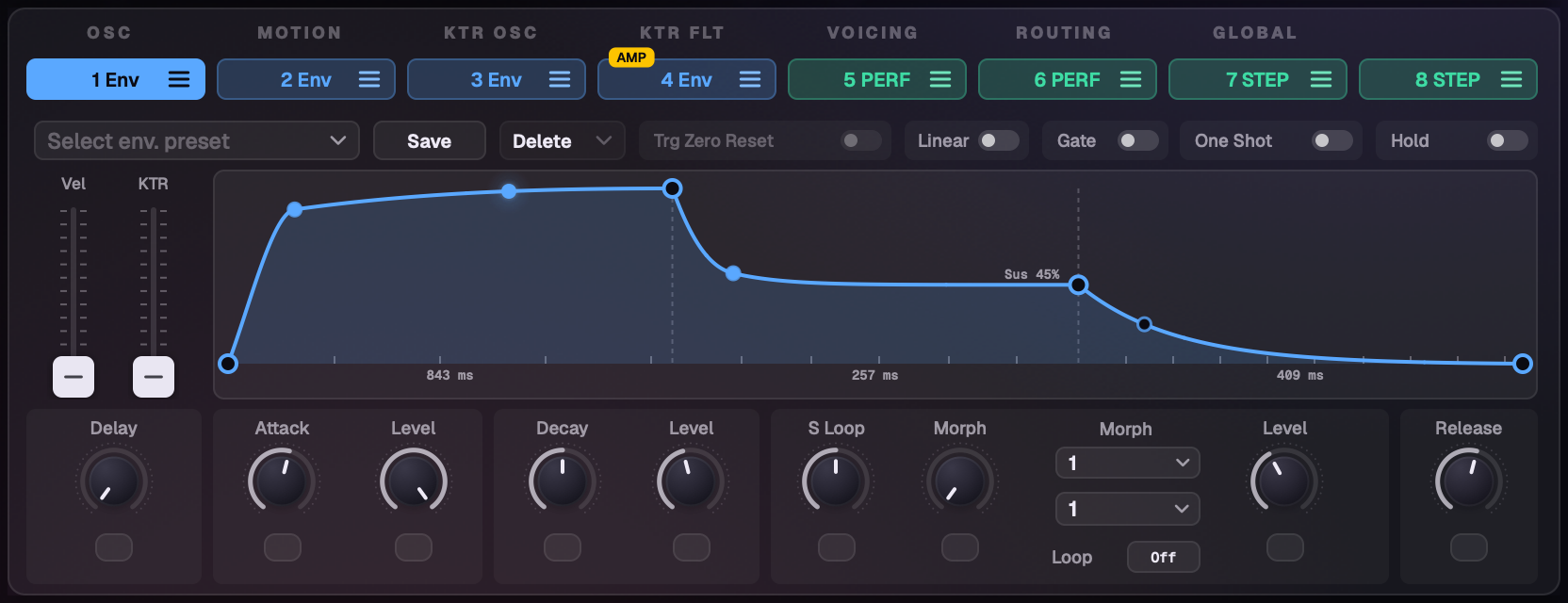
21Envelopes
An envelope with a curved attack and decay, its playhead and the times row under the graph.
Curved stages: drag the middle of the attack, decay or release line to bend it, across and up or down. Double-click straightens it.
Playheads: a dot travels along the curve for the newest note, through the sustain loop, its morph and the release; fainter dots follow the other held notes. A note let go early draws its own release from where it let go. The dot shows every stage, however short.
Times: under the graph, each stage's time (Delay, Attack, Decay, S Loop, Release) and the sustain level ("Sus 70%"), with faint time ticks along the floor. They follow as you drag.
Morph shapes by name: the morph menus list Massive's 22 shapes by name, each with a picture. User 1 and User 2 at the end let you draw your own in the curve editor.
The S Loop knob has a mod slot of its own.
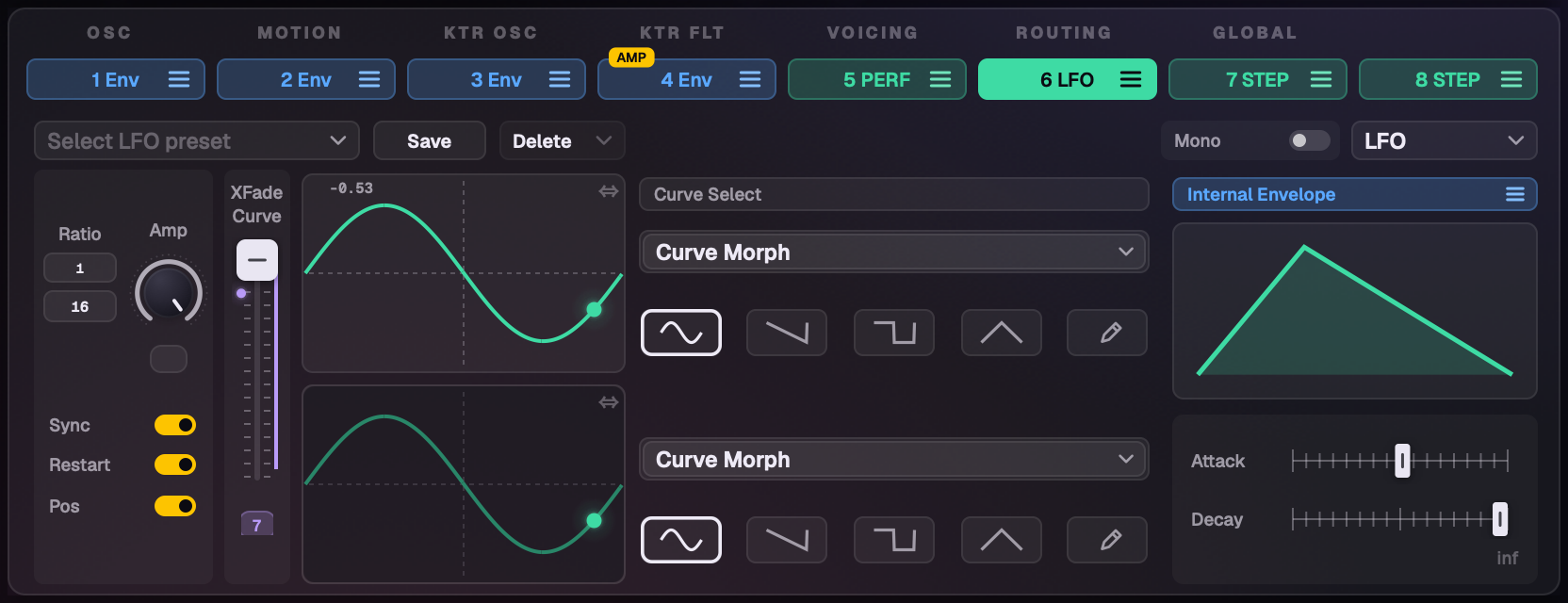
22LFO
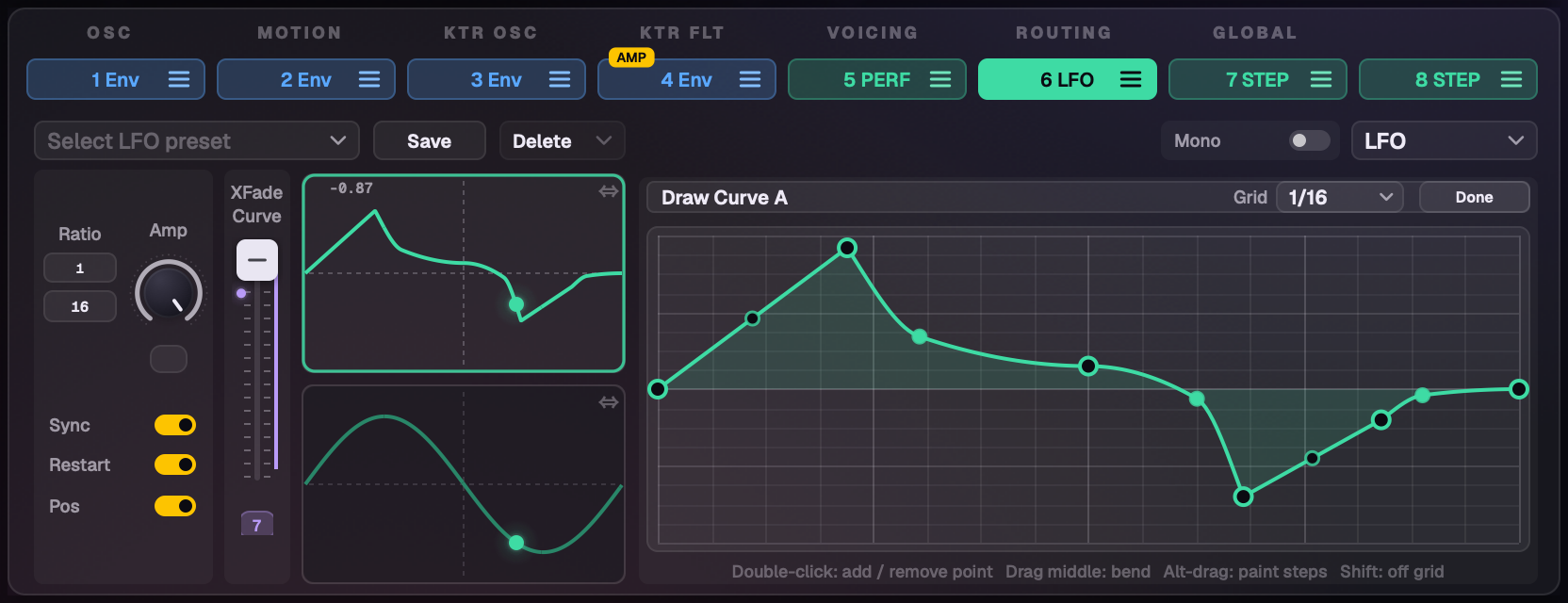
Slots 5–8 can each be an LFO, a Performer or a Stepper: pick with the slot's pill or the type menu. Switching type keeps each type's settings, so you can try another and come back to everything as you left it. Picking a type switches Restart on, so each note starts the pattern from the beginning (a loaded sound keeps its own).
An LFO with its playhead.Drawing your own curve.
Draw your own curves: pick User and click the pencil. Double-click to add or remove a point, drag a segment's middle to bend it, Option-drag to paint steps, and snap to a grid.
Massive's named curves in the Curve Morph list, each with its name and a picture.
Phase per curve for each of the two curves.
Sync: Rate becomes a ratio (like 1/4), with Pos.
XFade shows what you hear: centred, both curves are bright; leaning one way dims the other, live as it moves.
A playhead dot runs along the curves, with the value now in the corner. A Mono LFO with Restart on restarts with each new note; a legato note leaves it running.
23Performer and Stepper
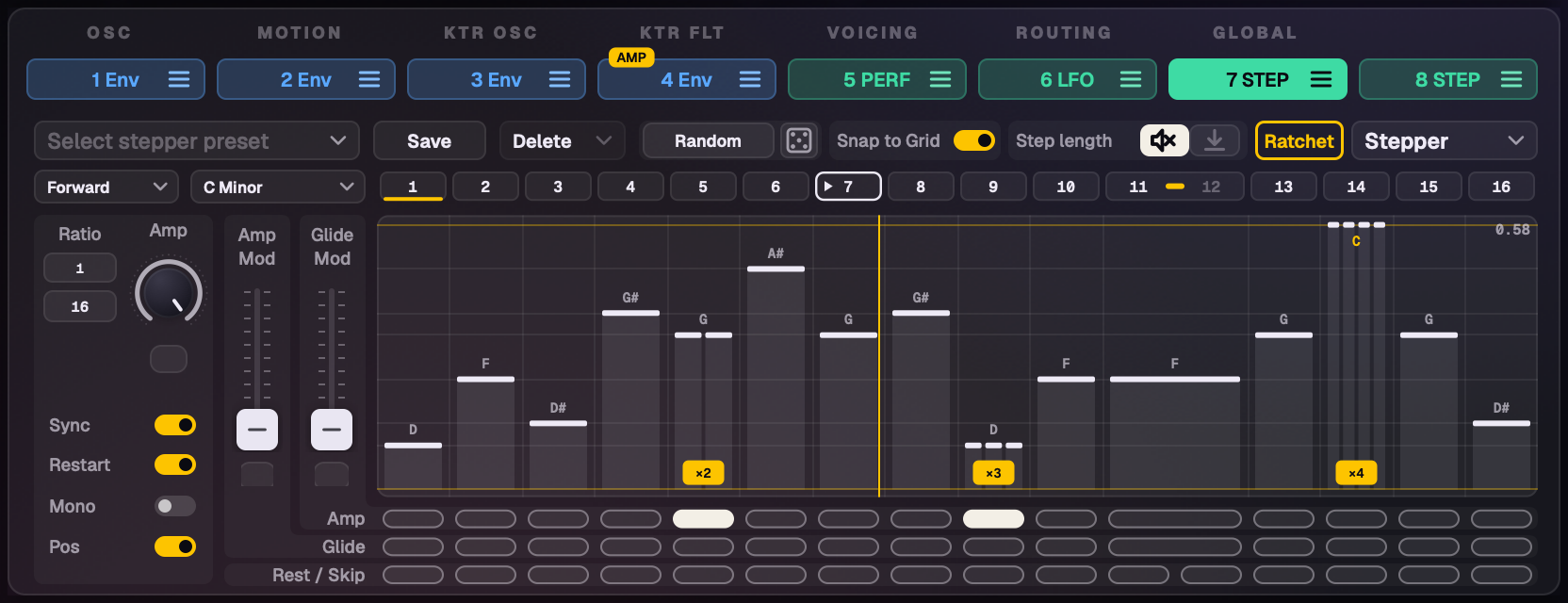
A Stepper with ratchets, a rest and the key grid.
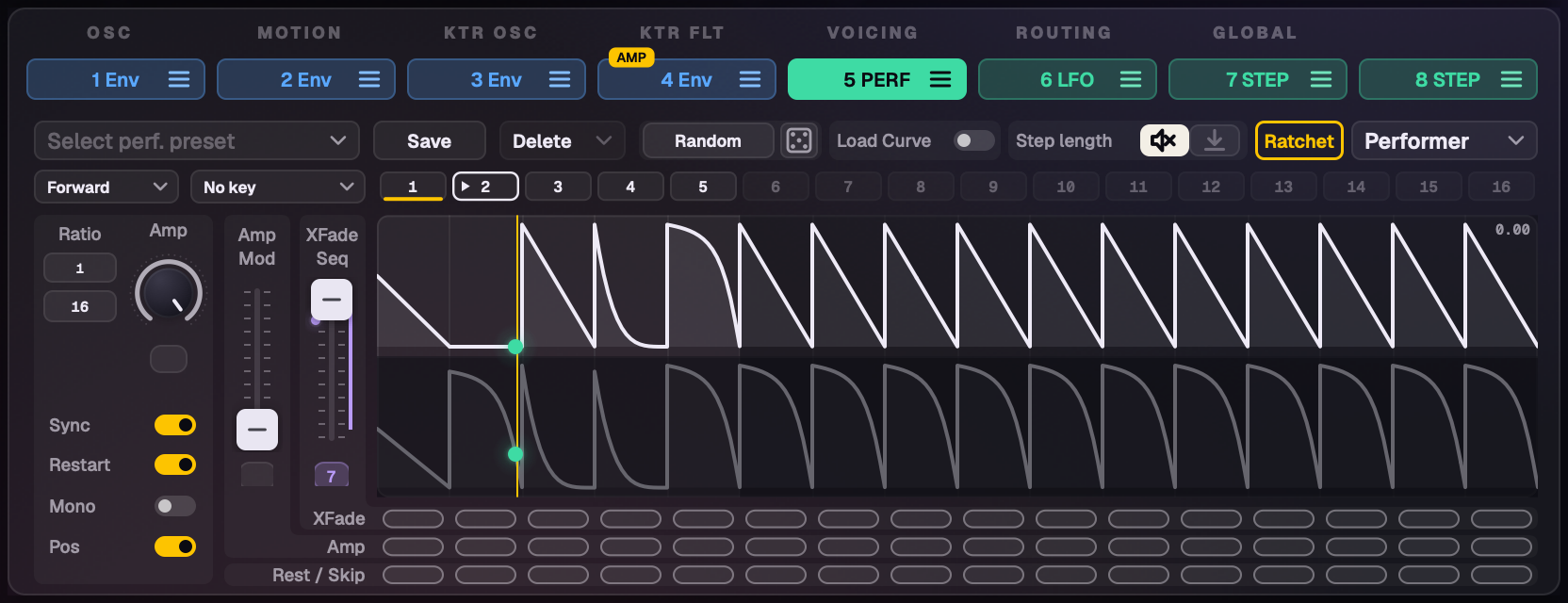
The Stepper plays a row of step values; the Performer plays a curve on each step, on an upper and a lower lane, blended by XFade. Rate and Amp are big knobs side by side, with the switches under them. Gigantic adds:
Ratchet
A step can fire 2, 3 or 4 evenly spaced hits. Click Ratchet beside Step length: the steps become ×1 to ×4 cells. Click one, or drag across steps to paint. Click Ratchet again and each ratcheted step shows its hits and a ×2, ×3 or ×4 tag. In the normal view, right-click a step for the same choice. On the Performer each lane has its own ratchets and plays its whole curve that many times. Ratchets work with Rest and step length.
Rest and Skip
In one row under the steps: click once for Rest (the step keeps its time but is silent), twice for Skip (the step takes no time).
Step length
Drag a step's right edge to shorten it. The Step length switch sets what happens in the time left: a muted speaker (silence) or an arrow to the floor (the modulation drops to its base). On the Performer each lane has its own length.
Link
Click between two step numbers to join them; click again to unlink. On the Performer a linked run plays as one long step. On the Stepper it's a tie: it holds the first step's value without re-triggering. Either way the run takes its first step's Amp, Glide, ratchet, length and Rest.
Direction
Forward, Backward (Performer curves play reversed too), Fwd › Bwd, Bwd › Fwd and Random (it follows the song position when synced).
Key snap
Pick a key and scale for the slot, or follow the header's KEY, and the pitch the slot modulates snaps to that key. The Stepper shows the key's notes as a grid, labelled by note name, number or scale degree (Options › Interface); with Key Off, no grid.
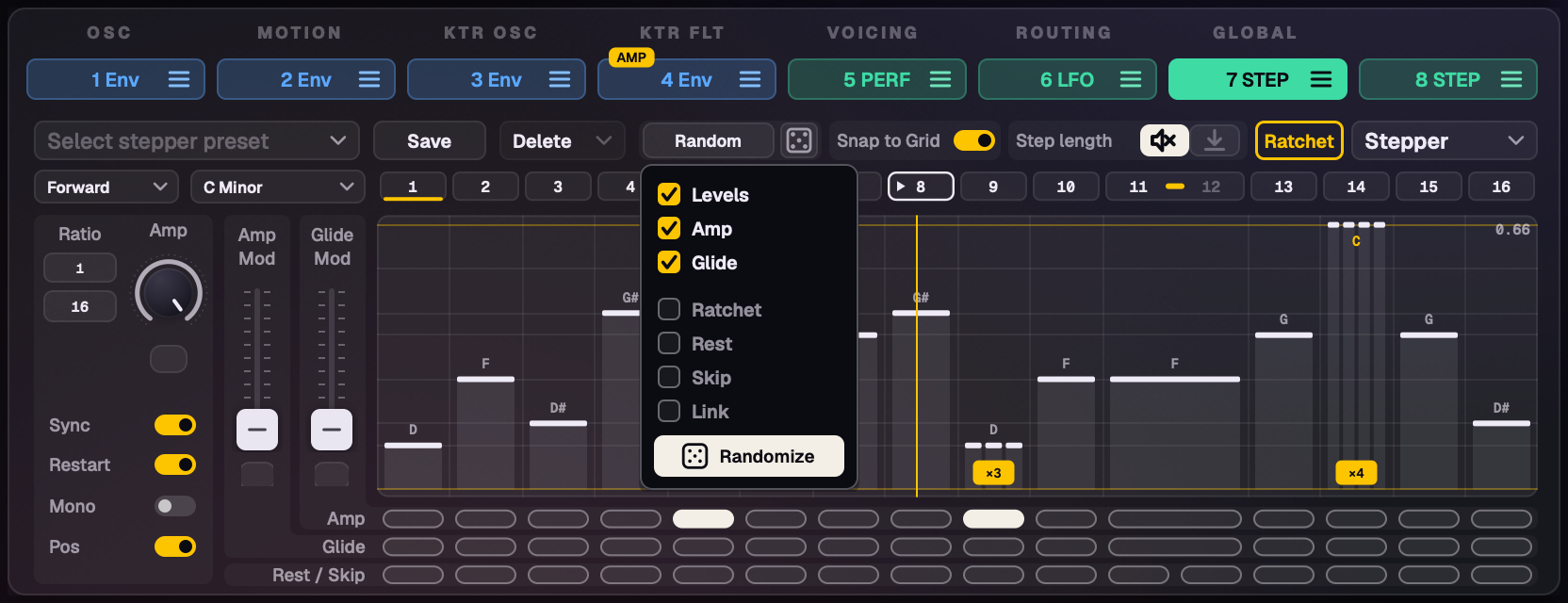
Random
The Random button opens tick boxes with a Randomize button; the panel stays open, so the next roll is one click. The die beside it rolls the same ticks without opening the panel. Stepper: Levels, Amp, Glide, Ratchet, Rest, Skip, Link. Performer: Upper and Lower pick the lanes, then Levels, Curves, Ratchet, Rest, Skip, Link. What's unticked stays as it is.
The Random panel.
And more
Draw your own Performer curves: User 1–4 in Curve Select, drawn in the curve editor. The Load Curve grid shows Massive's named curves with pictures.
Drag across a row of boxes to set many steps at once.
A Performer playhead runs along both lanes. New Performers start with every XFade box ticked.
A Performer: two lanes of curves, blended by XFade.
Massive plays its own LFO, Performer and Stepper. When a slot uses something Massive doesn't have (Rest, Skip, step length, links, ratchets, direction, key snap, drawn curves), Gigantic plays that slot itself; clear the extras and it goes back to Massive.
24Key tracking
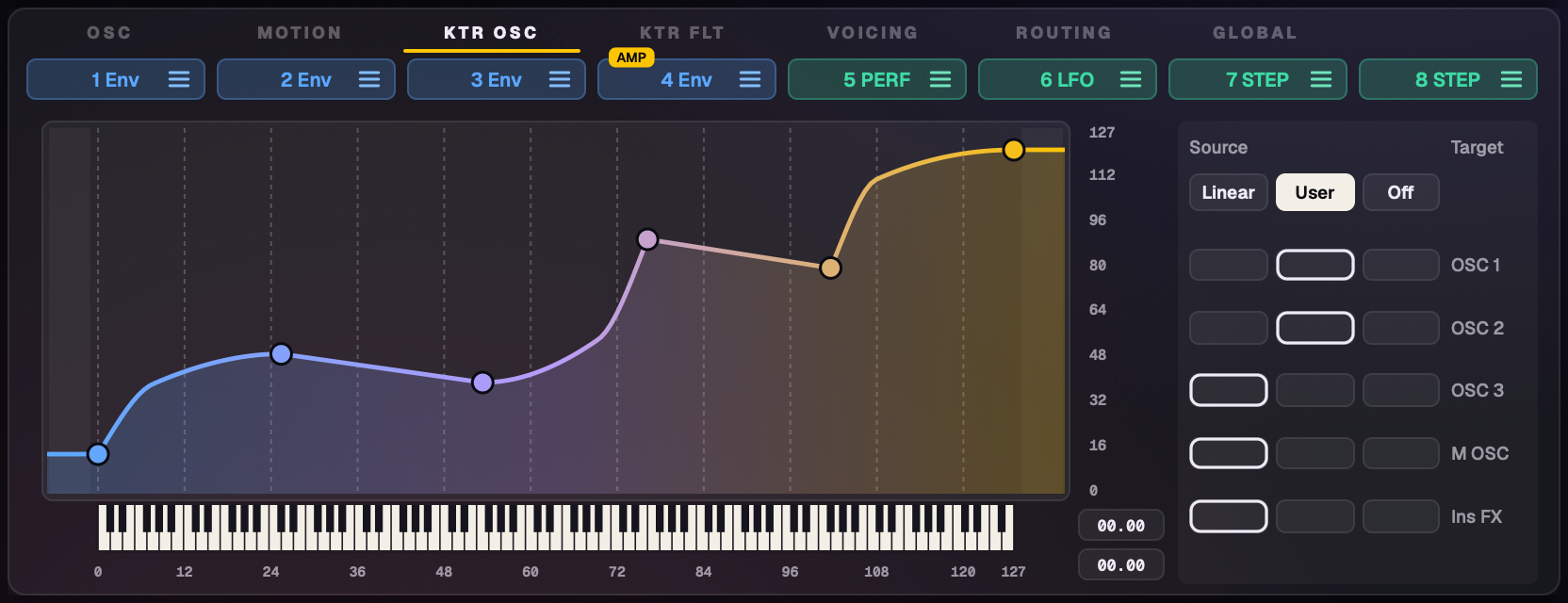
The KTR OSC and KTR FLT pages set how the played key moves the oscillators' pitch and the filters' cutoff and resonance. Draw your own curves:
double-click to add a point (up to 16); double-click or Option-click to remove one;
drag points in any direction;
drag a segment's middle to curve it.
A drawn key-tracking curve.
25Voicing
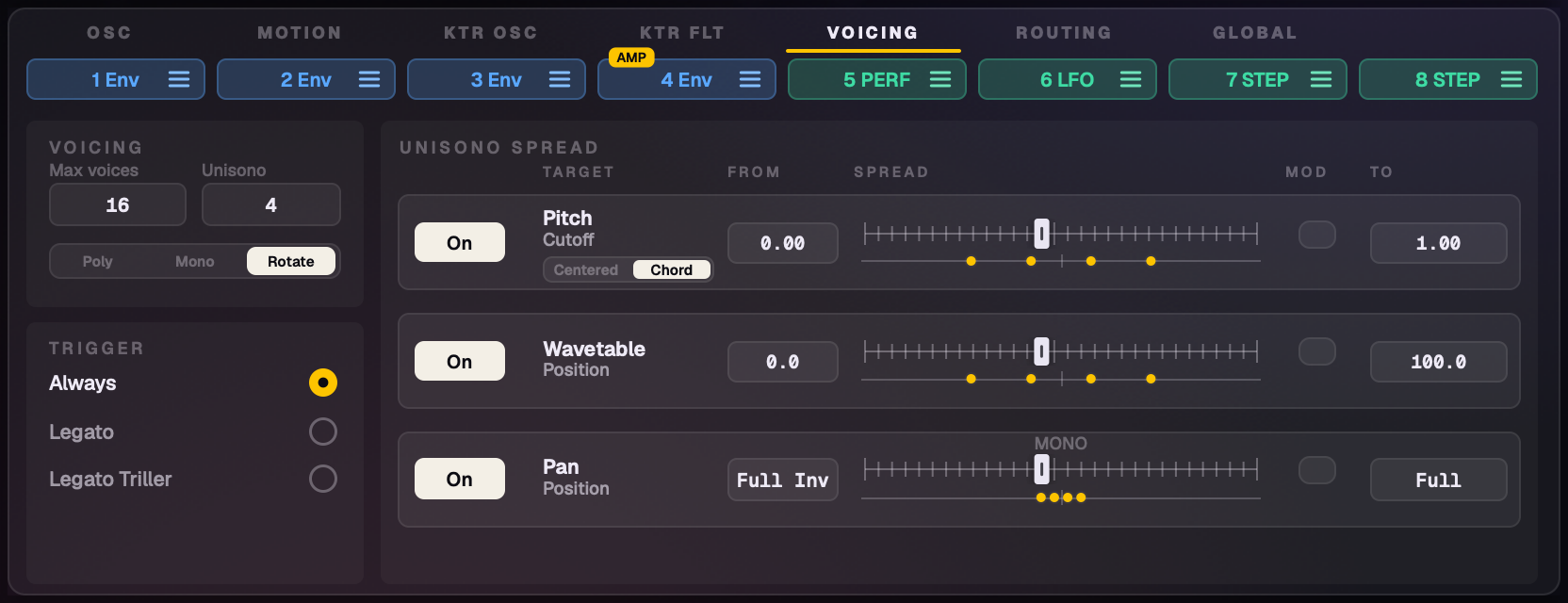
The Voicing page: the Voicing and Trigger cards, and the Unisono Spread rows with their dots.
A Voicing card (Max voices, Unisono, Poly | Mono | Rotate) and a Trigger card (Always, Legato, Legato Triller).
The Unisono Spread rows under TARGET / FROM / SPREAD / MOD / TO headers, each with a mod slot, and the Detune Mode (Centered | Chord) in the Pitch / Cutoff row.
Spread pictures: a row of dots under each spread fader shows where the unison voices sit: yellow while unison plays more than one voice on that row, greyed otherwise.
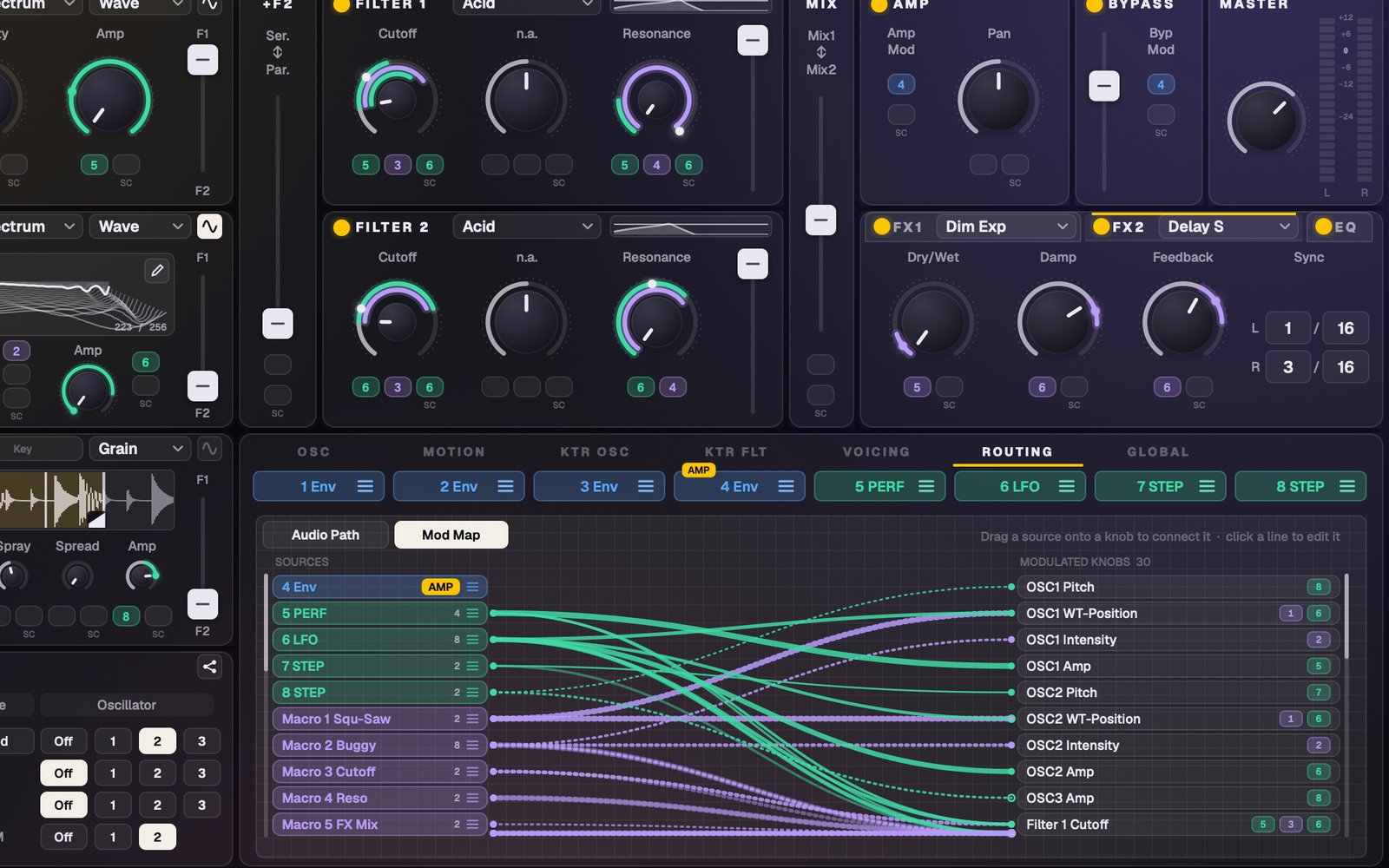
26Routing: Audio path and Mod map
The ROUTING tab has two views. Neither adds new routing to a sound: they show and edit what's there.
Audio path
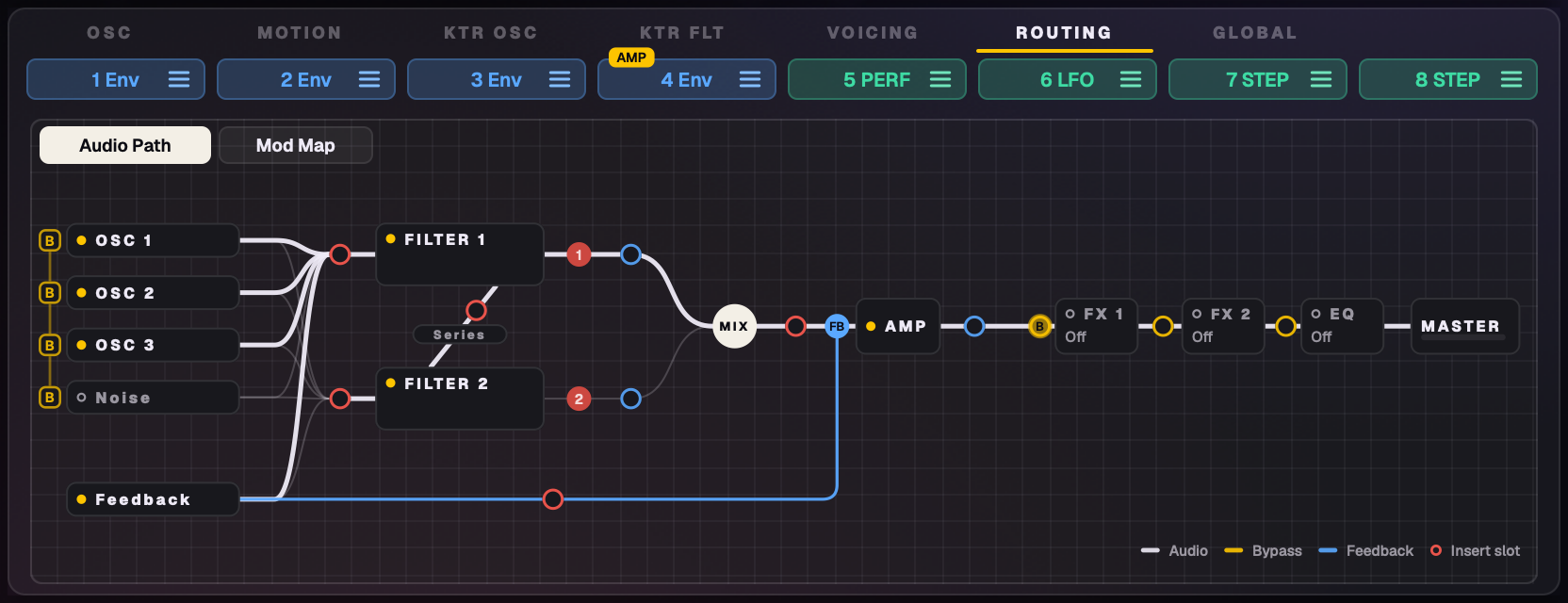
The Audio path: the signal flow, with dots flowing where sound passes.
The signal flow as cards on a grid: each with a yellow dot while its section is on (hollow when off). Filter cards show their type and a small response curve, Amp its pan, Master a level bar.
Audio wires are white, the bypass yellow, the feedback blue. Inserts are red numbered dots.
Drag the inserts, the feedback pickup and the bypass return to move them. Each insert has a place of its own.
While sound plays, dots flow only where something really passes, more and brighter where more does, live as the faders move.
Mod map
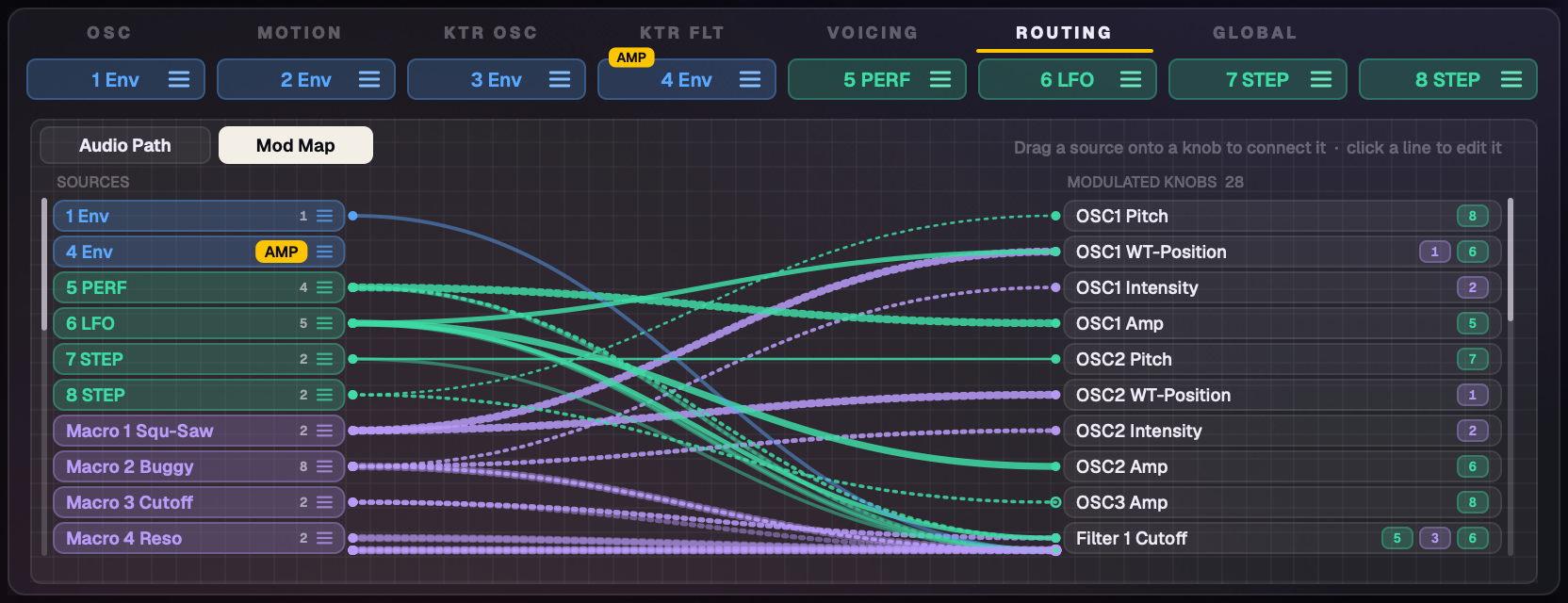
The Mod map: every modulation route as a line.
Every modulation connection as a line, sources on the left, controls on the right.
Drag a source onto a control to route it. Click a line to change its amount (pitch in semitones; hold Option for cents) or remove it.
Right-click a line to copy it, a control to paste on it.
27Global page and Randomize
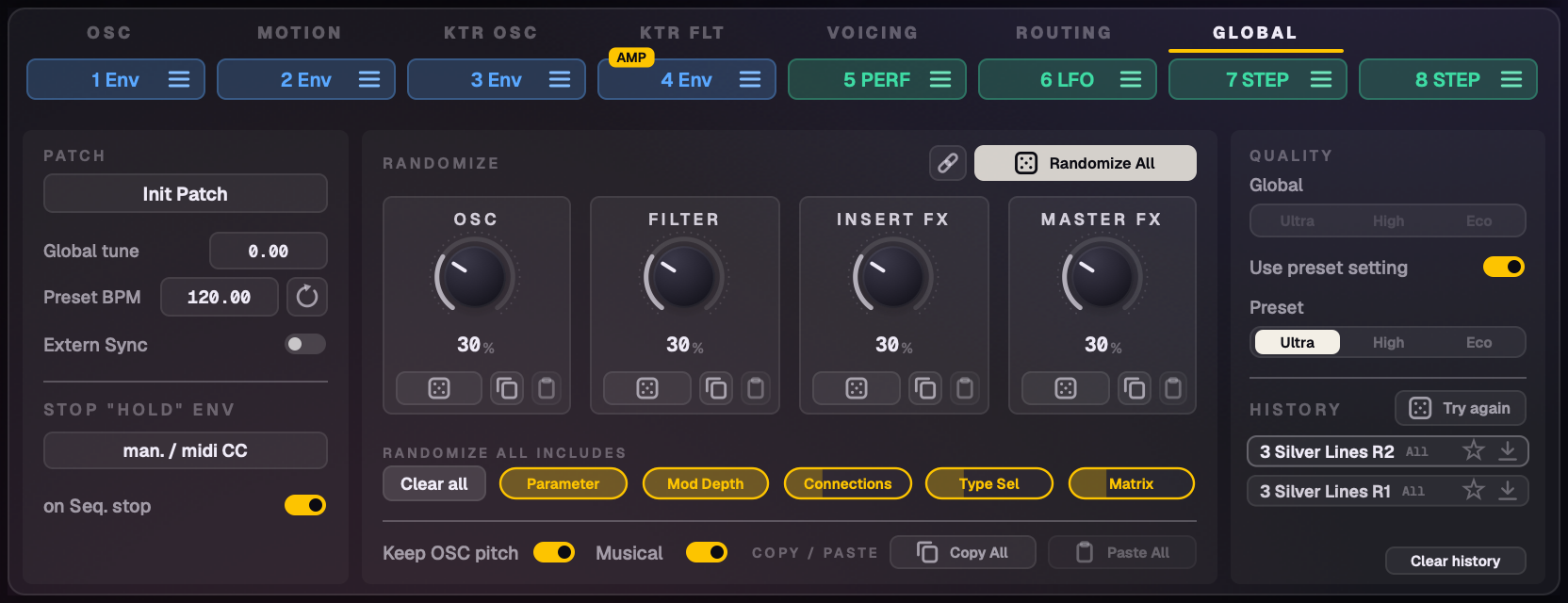
The Global page: Patch, Randomize with its history, and Quality.
Patch
Init Patch (back to the New Sound), Global tune, Preset BPM with Reset (120 BPM), Extern Sync, and Massive's Stop "Hold" Env: man. / midi CC releases envelopes set to Hold with the button or a MIDI CC; on Seq. stop releases them when your DAW stops.
Randomize
A card for each section (OSC, Filter, Insert FX, Master FX), each with its amount knob (double-click: 30%), its die and Copy / Paste. Randomize All rolls all four. Copy All / Paste All copy the whole sound.
Link (the chain beside Randomize All): the four amounts move together, keeping their balance. Option-drag one to link them for that drag only.
What changes: five strength bars, Parameter, Mod Depth, Connections, Type Sel and Matrix. Click a row on or off, drag to set how strongly it changes, double-click for the default. Select all picks every one.
Musical (on by default): moves stay near each value, pitches move by octaves or fifths, levels stay away from extremes and modulation is tamed. Keep OSC pitch (on by default) leaves the oscillators' pitches alone.
Randomize never moves the F1 / F2 routing faders, and Type Sel keeps each oscillator in its mode (a Sampler stays a Sampler).
Your Randomize settings stay as you set them whatever sound you load, until you quit (or remove the plug-in).
Randomize history
Every roll is listed, newest on top, as "patch name R1", "R2" and so on, with what was rolled ("Bass R3 · OSC 30%"). Click an entry to load that roll, from any patch. The star keeps it; the arrow saves it as a sound. Try again throws the last roll away and rolls again from the same starting sound: five presses, five variations. The last 30 are kept plus the starred; Clear history empties it, and it empties when Gigantic quits.
Quality
Global quality (Ultra / High / Eco), Use preset setting, and the Preset quality saved with the sound.
Quality sets what Gigantic's own voices spend (samples, grains, your own wavetables and noises, Audio In and Gigantic FX). On Ultra, moving modulation reaches their filters every sample, as in Massive. High sends it every 2 samples and Eco every 4: less CPU, with a slight difference on fast filter sweeps. Massive's own part keeps the quality stored in its sound.
28Macros and the macro pad
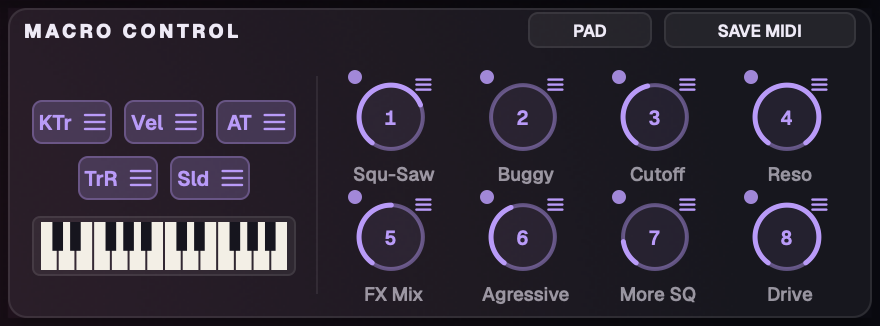
The Macro Control panel holds Massive's eight macros, with the KTr, Vel, AT, TrR and Sld (slide) sources. Drag any of them onto a knob to modulate it.
Rename a macro: double-click its name under the knob, type, press Return.
Follow dots: the small dot above each knob says whether the macro pad moves that macro; click it to switch.
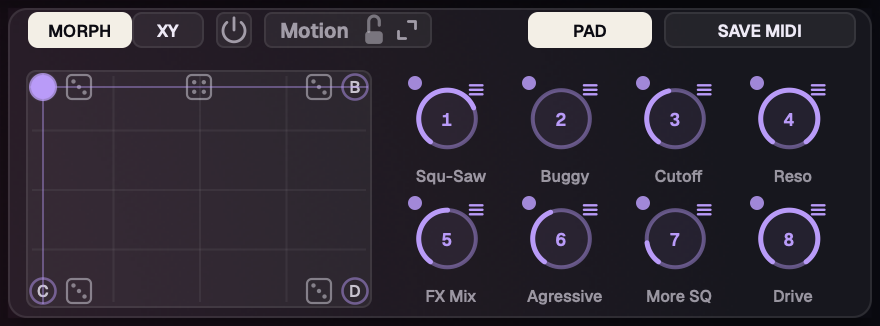
Click PAD: the pad on the left, the eight knobs on the right, turning live as the dot moves. Across the top: MORPH / XY, the die, Motion on / off (the power icon) and the Motion button, which opens the MOTION tab. The padlock on the Motion button is Motion's lock: click it to keep Motion's settings when you load another sound.
The small macro pad.
Morph or XY stays as you pick it when you change sounds (header arrows, the Browser, Random, a controller's buttons): it only decides what moving the pad does, so the sound plays the same either way. A sound saved with Motion on brings its own Morph or XY, since its movement depends on it, and a DAW project opens as it was saved.
Morph
Each corner, A to D, holds all eight macros; the dot blends the four.
Corner A is your sound: every sound loads with the dot on A, so it plays as saved, and turning knobs there edits the sound.
B, C and D roll fresh on every load (only macros that modulate something and follow the pad), unless the sound was saved with corners you set, which come back as saved.
Dice: each corner has its own die; the small die on the pad's top edge rolls all four. A roll changes the corner's values and never moves the dot: you hear it as much as the dot is near that corner. Every roll is one Undo step.
Hover a corner to see faint ghost marks on the knobs where it would put each macro.
Right-click the pad › Save the macros to corner A–D, Roll all four corners, Set B, C and D to match A.
XY
One macro left-right, one up-down. Their names sit on the pad's bottom and left edges: click one to pick. The die picks two macros that modulate something.
29Motion
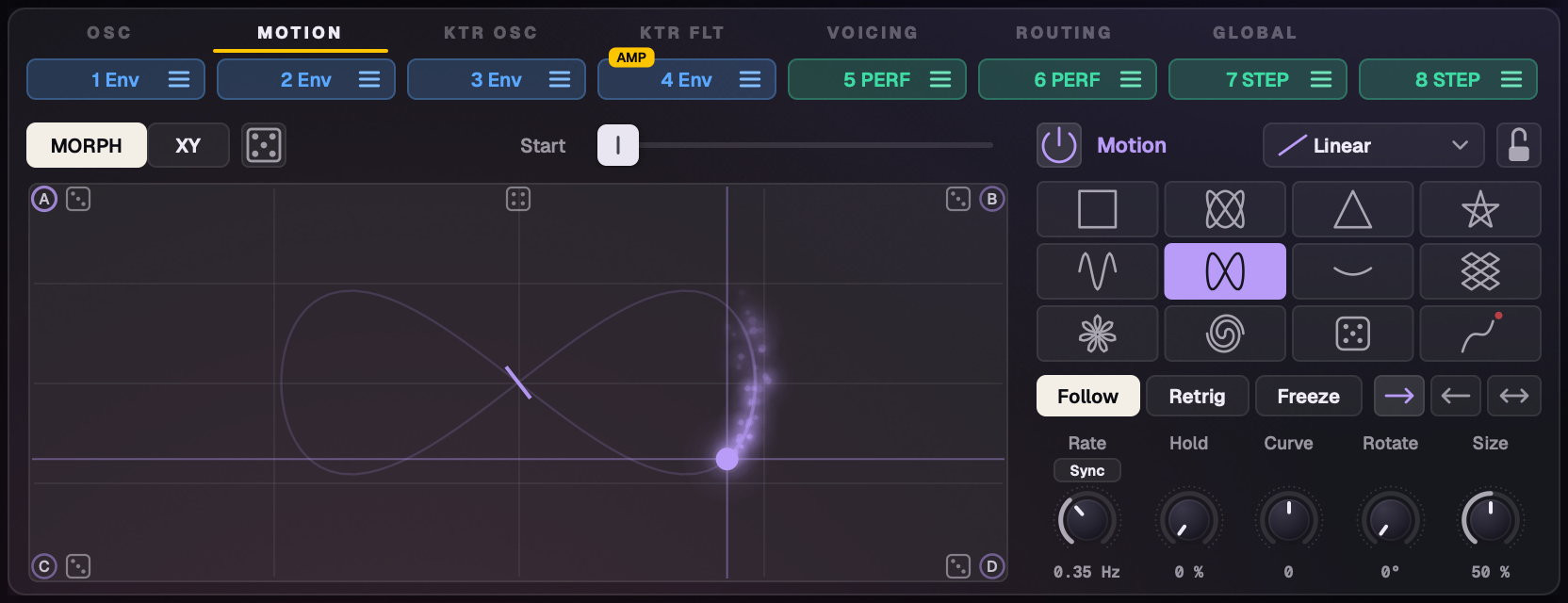
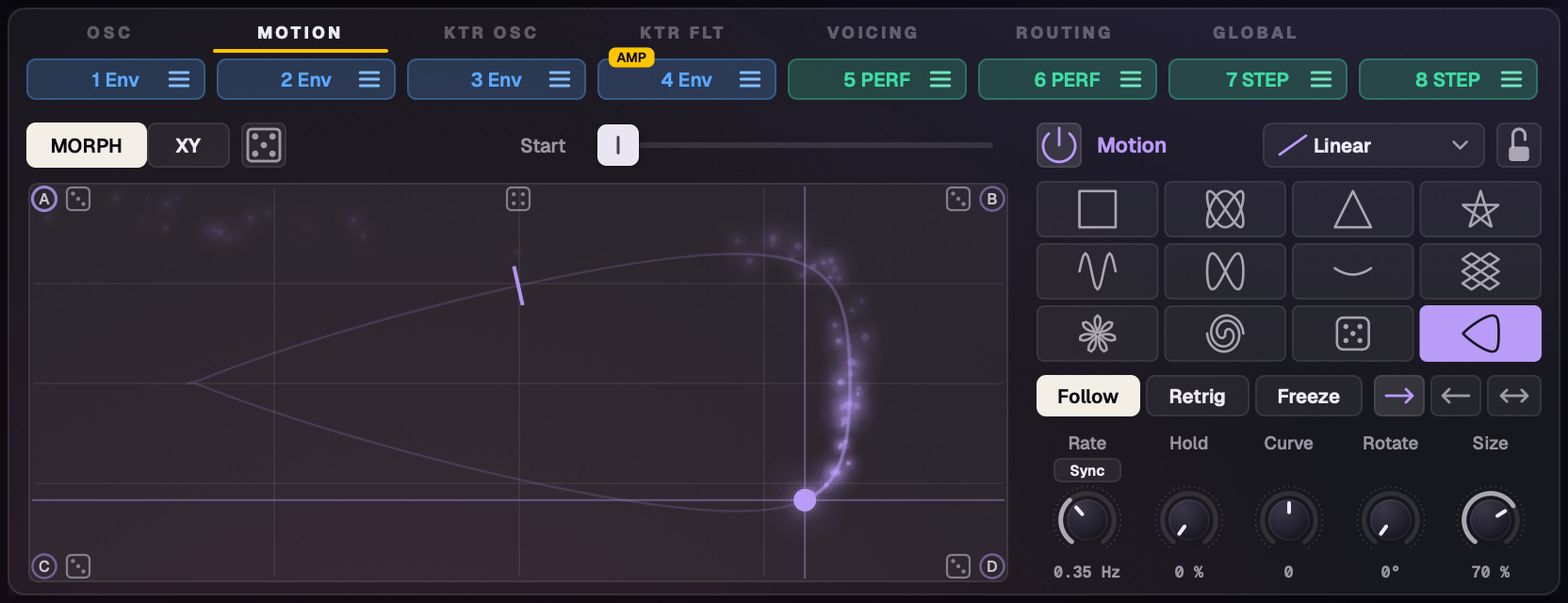
The MOTION tab: the big pad, the shape tiles, Follow / Retrig / Freeze, and Rate, Hold, Curve, Rotate and Size.
Motion moves the pad's dot on its own, along a shape, so your macros morph by themselves. It runs in the audio engine: in time with your song, with the window closed too. Open it with the centre's MOTION tab (second, after OSC) or the Macro panel's Motion button; the same pad and settings as the small view.
Shapes
Twelve tiles: Square (A, B, D, C), Knot, Triangle, Star, Wave, Figure 8, Pendulum, Bounce, Spirograph, Spiral, Random (eight random points; click again for a new look) and Draw. Clicking a tile turns Motion on and starts that shape fresh, centred, with Curve, Rotate, Hold, Feel and Size back at their defaults (Speed, Sync and direction stay). Every shape fills the same box, so switching never shrinks or grows the motion.
The controls
Power · lock
Motion on / off, and the padlock that keeps Motion's settings when you load another sound.
Feel
How the dot travels each part of the path: Linear (even), Ease In, Ease Out, Smooth (slow, fast, slow) or Rush (fast, slow, fast). The cycle's length and sync stay exact.
Rate · Sync
How fast the dot travels: 0.05–10 Hz, or with Sync (under its name, or click its value) 8 bars to 1/16, locked to the song. Every shape moves at about the same pace.
Hold
0% (default) travels smoothly; more rests on each point; 100% jumps from point to point. Square at Size 100% with a high Hold is a four-step sequencer of your corners.
Curve
−100 to +100. Up rounds the corners and bows the sides (Square becomes a circle); down pinches and sharpens (Square becomes a star, Wave a zigzag).
Rotate
Turns the shape clockwise, 0–360°, fitted to the same box.
Size
How big the path is.
Follow · Retrig · Freeze
Follow runs on; Retrig restarts on each note; Freeze parks the dot on Start, and notes never move it.
Direction
Forward, backward or ping-pong.
Start
The slider on the MORPH / XY line: where along the path Motion begins (0–100%, a tick marks it). Synced with Follow, Start lands on the bar.
Page die
Beside MORPH / XY: randomizes the whole page (corners, shape, Feel, Curve, Hold, Rotate, Size, direction, a synced Rate). Motion on / off, the lock, the mode and a drawn path stay.
Double-click a knob to reset it: Hold 0, Size 50, Rotate and Curve 0, Rate 0.50 Hz (1 bar synced).
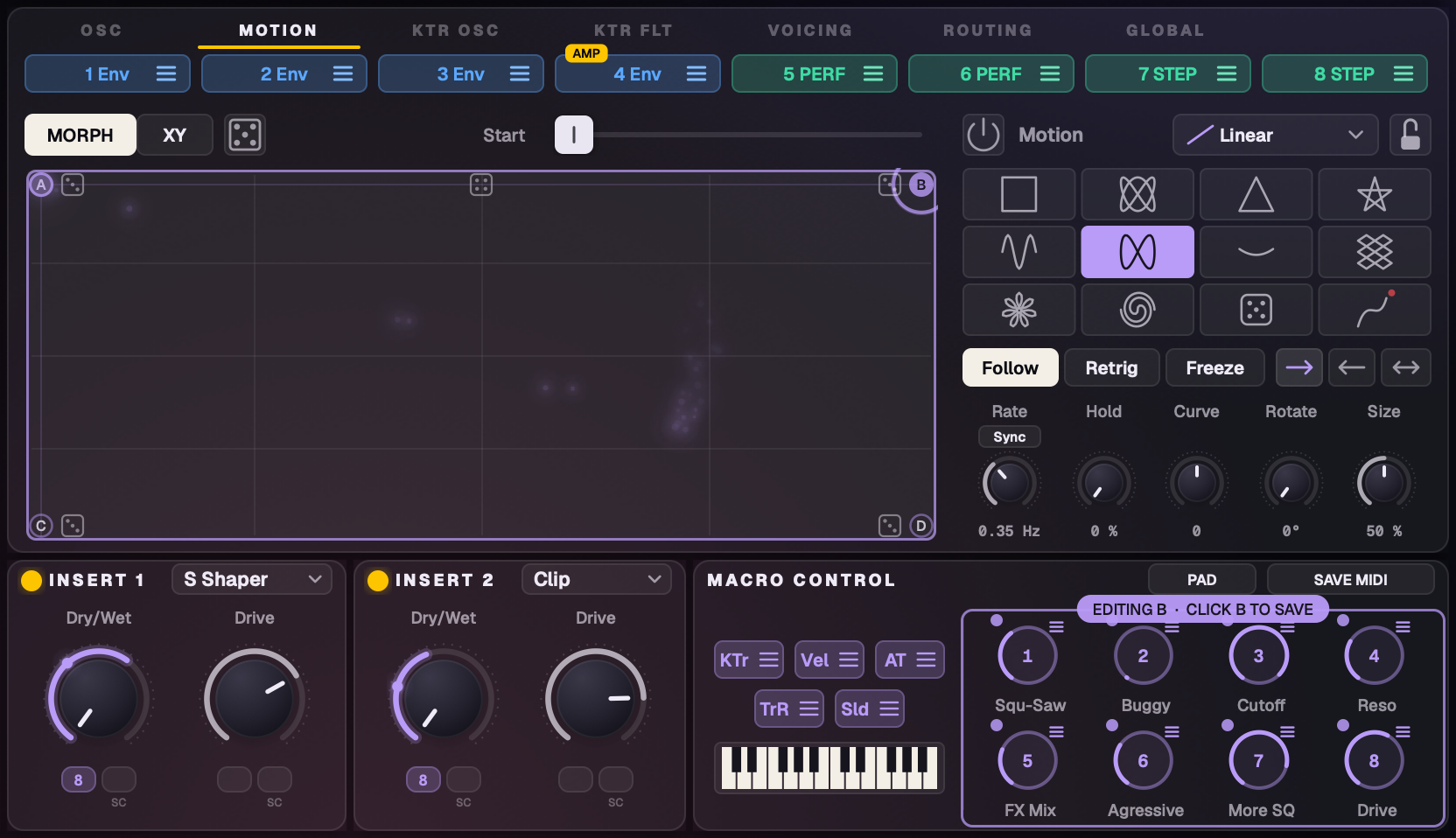
Draw: your own path, looping as soon as you let go.Editing corner B: the knobs show that corner.
Draw a path
Pick the red-dot Draw tile and draw right on the pad ("Draw a path"). On release it loops at once, with Motion on. Drawing again replaces it; Esc, another shape or Motion off cancels, keeping a path drawn earlier.
Edit a corner
Click a corner's letter: the pad's edge and the knobs light up ("EDITING B · CLICK B TO SAVE") and the knobs take that corner's values, so you hear it. Turn the knobs, then click the letter again to save ("SAVED TO B"). Esc or a click on the pad cancels; another letter switches corners.
Grab the dot
Grab the moving dot to take over. While you hold it, Motion's path is drawn round it, showing where Motion will run; let go and it runs on from there. Both pads show the faint path while Motion is on.
Controllers and your DAW
Pad X and Pad Y are automatable: automating them moves the dot as a hand would.
Turn a macro with a controller or automation while Motion drives it and that macro is yours; a second after your last move Motion glides it back, with no jump.
Everything on the pad and Motion page (mode, Motion on / off and lock, Rate, Sync, Size, Curve, Hold, Rotate, Start, Feel, shape, direction, Follow / Retrig / Freeze) can be MIDI-learned and automated.
Part 5
Finding sounds
The Browser: your whole Massive library and your own sounds, searchable, mappable and playable before you load them.
30The Browser
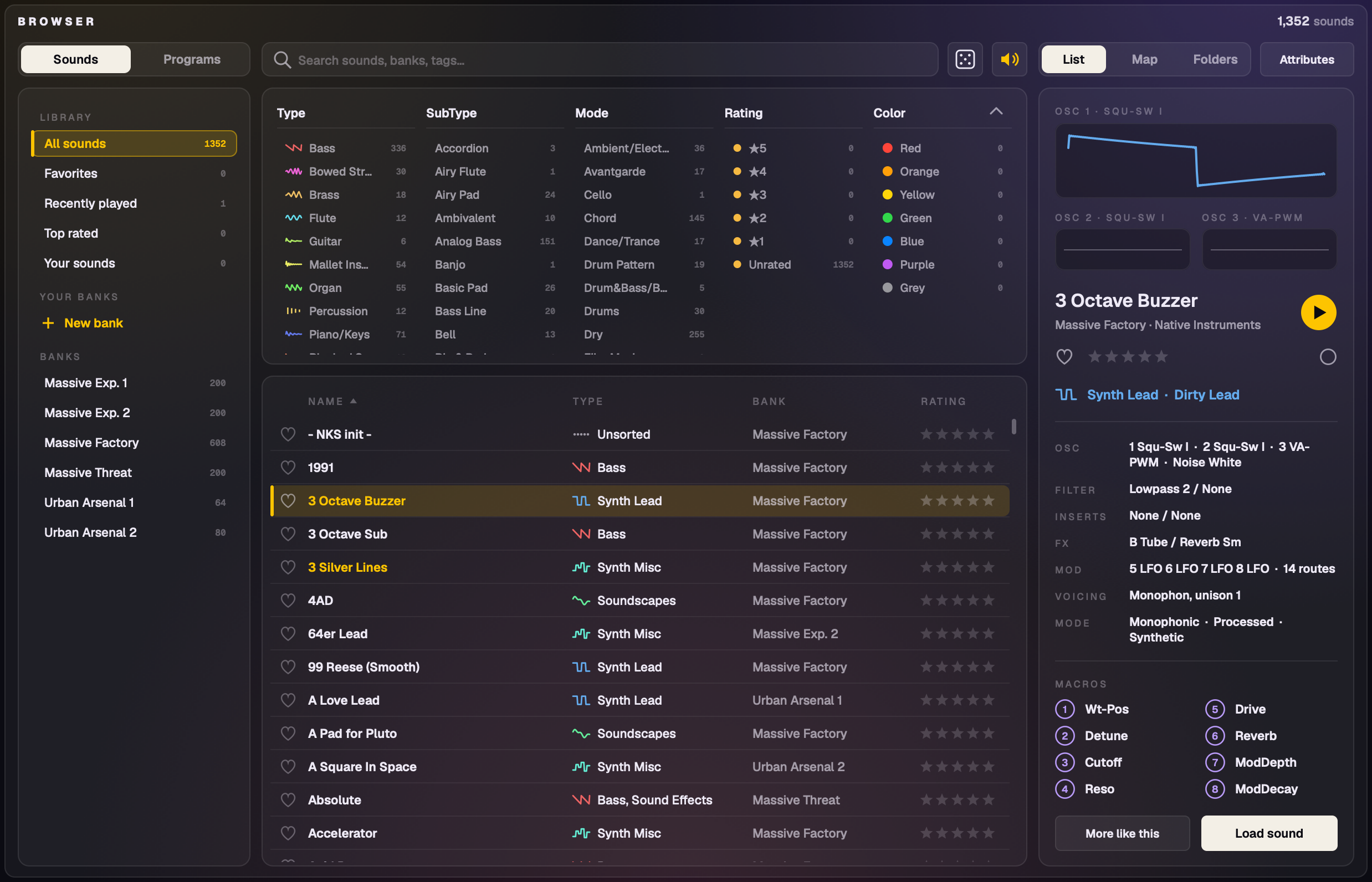
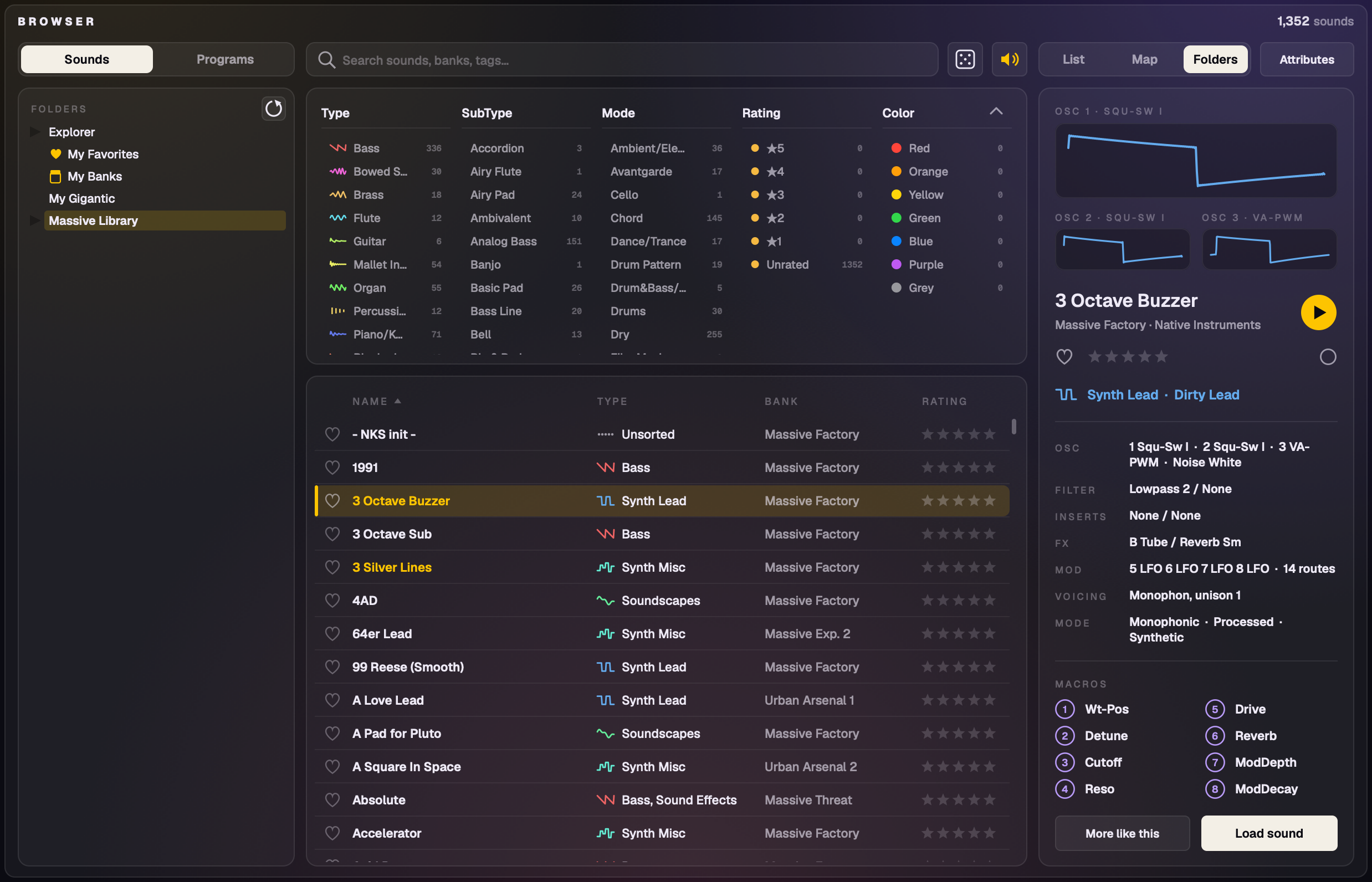
The Browser: sidebar, filters and list, and the details panel on the right.
Click Browser in the top bar. It lists Massive's sounds and yours. One click selects a sound and shows what's in it, without loading it; double-click (or Load sound) loads it. The Browser opens fresh each time: the List, sorted by name, no filters. Your favourites, ratings, colours and Recent stay.
The top bar
Sounds | Programs over the sidebar. Programs shows Program Change, Load and Save for Massive's program lists.
Search in the centre: type and press Return, and your words become a removable token. Several tokens all apply. Filter picks show as tokens too; the box's × clears everything.
The speaker (preview) and the dice.
List | Map | Folders and Attributes over the details.
Sidebar
Library (All sounds, Favorites, Recently played, Top rated, Your sounds) with counts, your colour tags as dots (click a lit one to turn it off), your banks with + New bank, and Massive's banks. A folder of sounds dropped on the Browser shows under Added folders; right-click it › Remove from Gigantic to take it out again (your files stay where they are; drop the folder again to bring it back).
Filters
Five columns side by side: Type (each with its own small glyph and colour), SubType, Mode, Rating and Color, each with counts, several picks, its own scroll and its own reset arrow. The ^ folds them to one line. The search narrows the filters rather than replacing them.
Details
The selected sound's oscillators as pictures (OSC 1 large with its wavetable's name), its name, bank and a round play button, heart, stars and colour, Type, SubType and Mode tags, what's in it (oscillators, filters, effects, voicing, modulators, routes), its macros as numbered circles and its author, then More like this and Load sound.
Keys
↑↓ step through the results, even while the search field has the cursor (each one plays with the speaker on); ←→ stay in the text; Return loads the sound you stepped to; Esc leaves the field.
31List, Map and Folders
List
Name, Type, Bank and Rating by default; Color and more in the column picker.
Map
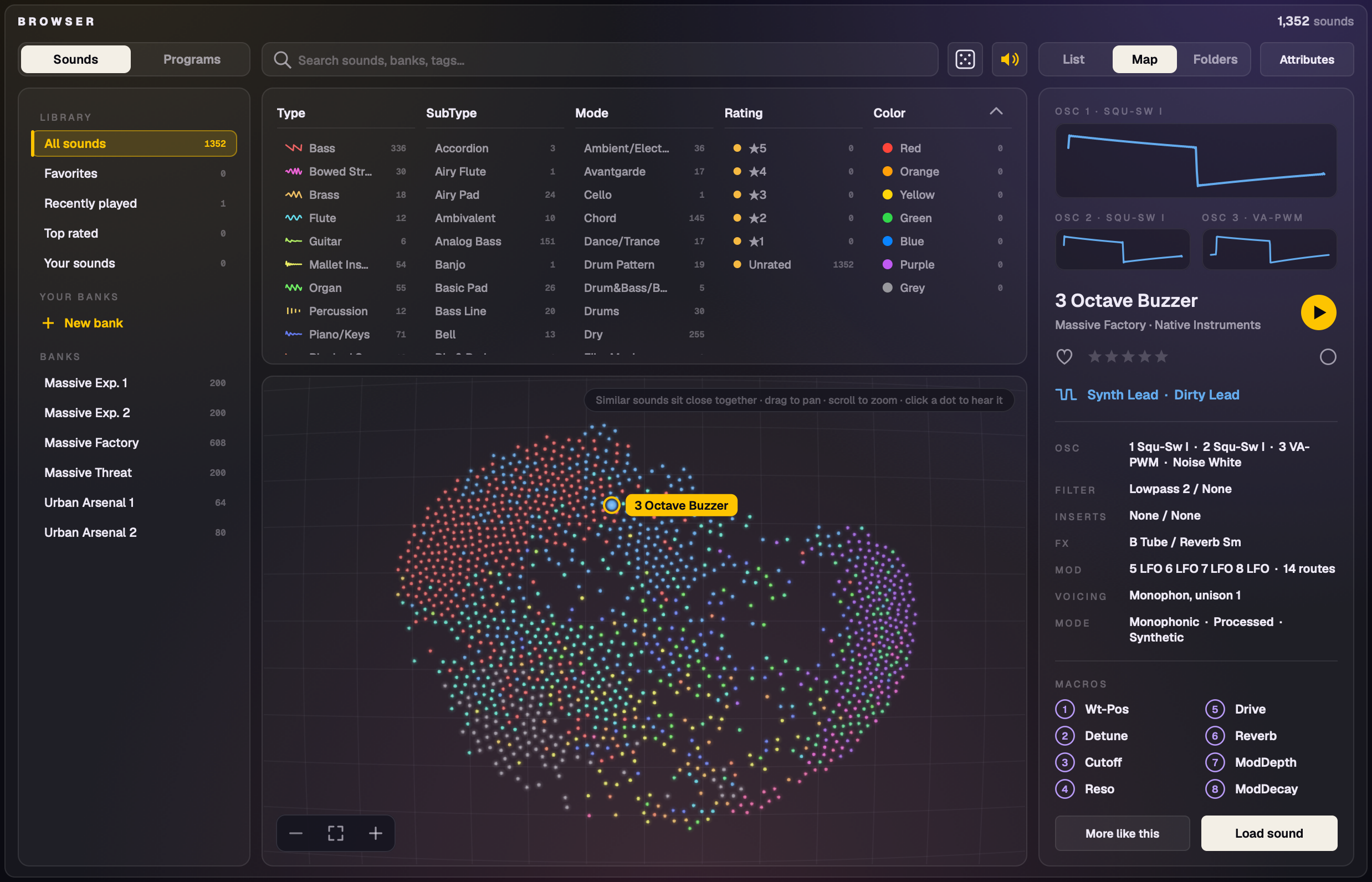
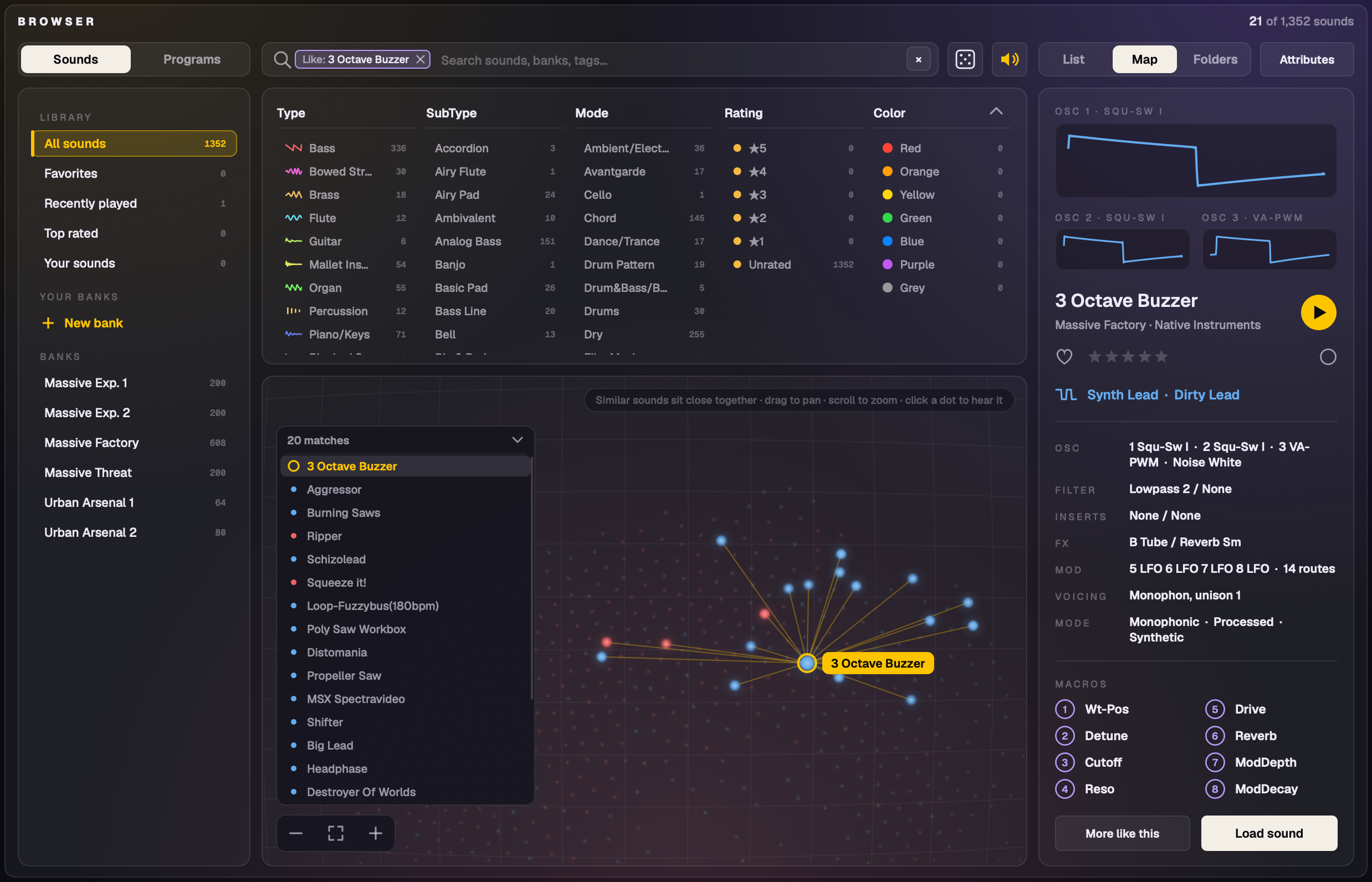
The Map: every sound a glowing dot, placed by its character and coloured by its Type.
Every sound is a dot, placed by what it does (its SubType and Mode tags: airy, deep, digital, evolving, percussive…), so an evolving pad, a soundscape and a slow bass can sit together. The dot's colour says the Type.
Scroll zooms round the mouse, drag pans, − / fit / + at the bottom left. The camera glides.
Hover a dot for a small card (name, Type, SubType). Click to select and hear it; double-click to load. (Options › Library › Preview on hover plays a dot you rest on instead.)
A filter lights its sounds across the map and the Map flies to them. Arrow keys pick the nearest sound in that direction.
Folders
Your sound folders as a tree, with the folder's sounds (and every sound under it) beside it, and a rescan button. Drag folders or presets from the Finder (or File Explorer) into the Browser to add them to the library. Moved or renamed files are found again by their content.
Folders view.
32Preview, dice and More like this
Hear a sound before you load it
The speaker in the Browser's bar (on by default): click or arrow through sounds and each one plays a held note (C2 for basses and drums, C3 otherwise, 6 dB down) without touching the sound you have loaded. Fast scrolling stays quiet until you stop. A preview ends on its own after a couple of seconds; the details' play button plays it again. In a DAW it stays quiet while the transport plays.
Dice
The Browser's dice rolls a random sound from what's listed (your filters, search and More like this), never the one you have, and jumps to it in the List, Map or Folders.
More like this
More like this on the Map: the anchor in gold, its matches with gold lines, and the matches strip.
Click More like this: the sound becomes the anchor (a gold ring) and its ~20 closest matches light up with thin gold lines. The same SubType counts most, then the Type, shared Modes and the bank. Each match says why ("Shares: Sub Bass · Monophonic · Dry").
The matches stay put while you click through them; the one you pick gets a white ring and plays.
More like this on a match steps on from it, and the Like token keeps the trail ("Like: Pad › Warm Pad"): click an earlier name to step back, × to end it. Click the gold anchor again to turn it off.
On the Map, the matches strip (bottom left) lists the anchor and its matches; ↑↓ walk the matches and ←→ move along the trail.
33Tags, banks and Attributes
Ratings, favourites and colour tags on any sound, with filters for each.
Your banks: make your own with + New bank and drag sounds into them. Banks only point to the files and never move them.
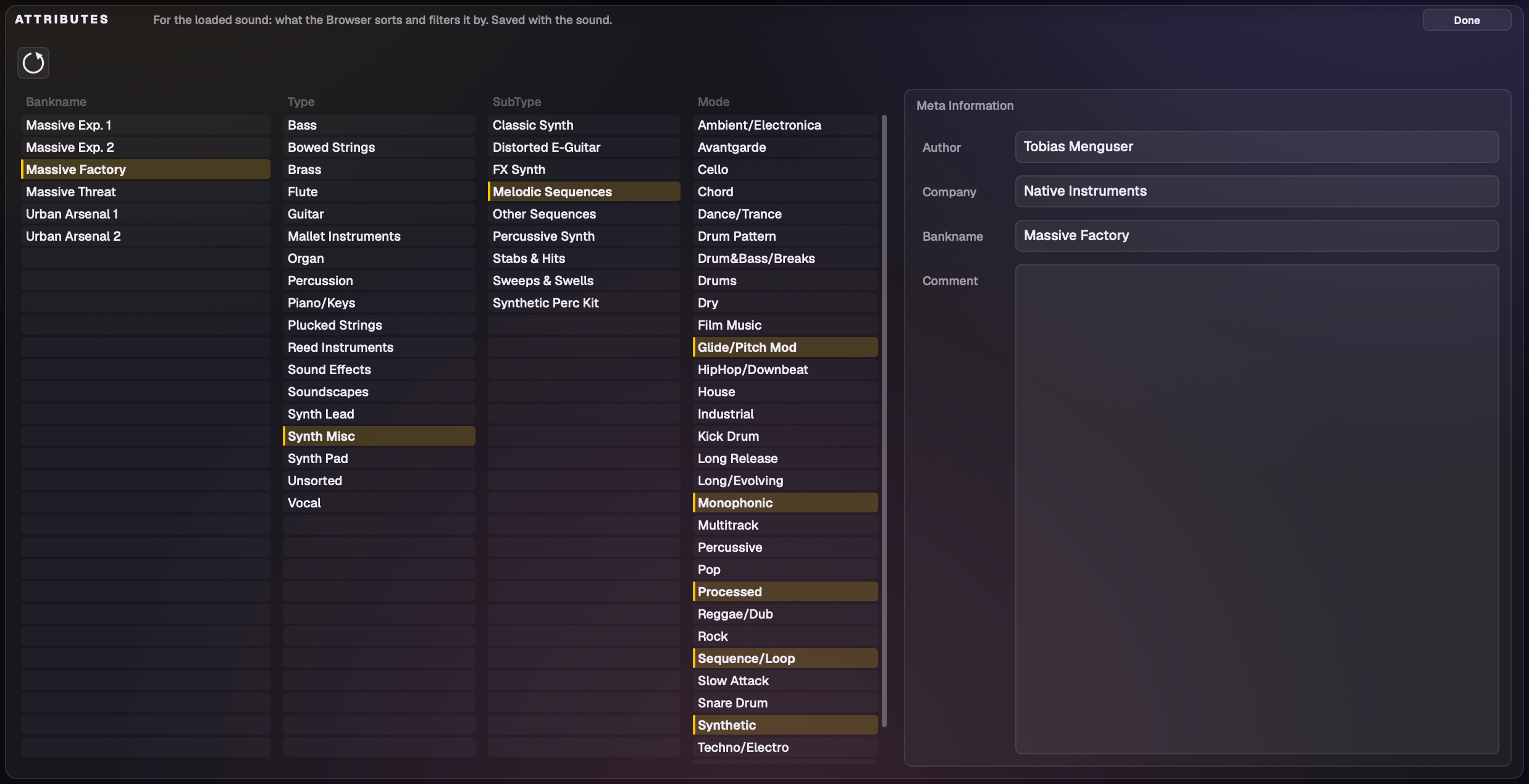
Attributes (Sound Info)
The Attributes button edits the loaded sound's bank, type, subtype, mode, author and comment, saved with the sound. Save As also asks for the bank, type and comment as you name a sound. Set a default author in Options › General.
Editing the loaded sound's attributes.
Part 6
Playing and controlling
MIDI controllers, MPE, your DAW, and Gigantic as an effect.
34MIDI Learn and MIDI maps
MIDI Learn on every control: right-click any control › MIDI Learn, then move a knob on your controller. That includes the macro pad and Motion, and each oscillator's source, play mode, direction, Key, Sync, Granular Key and Audio In's gate (Sync from the KEY menu's right-click).
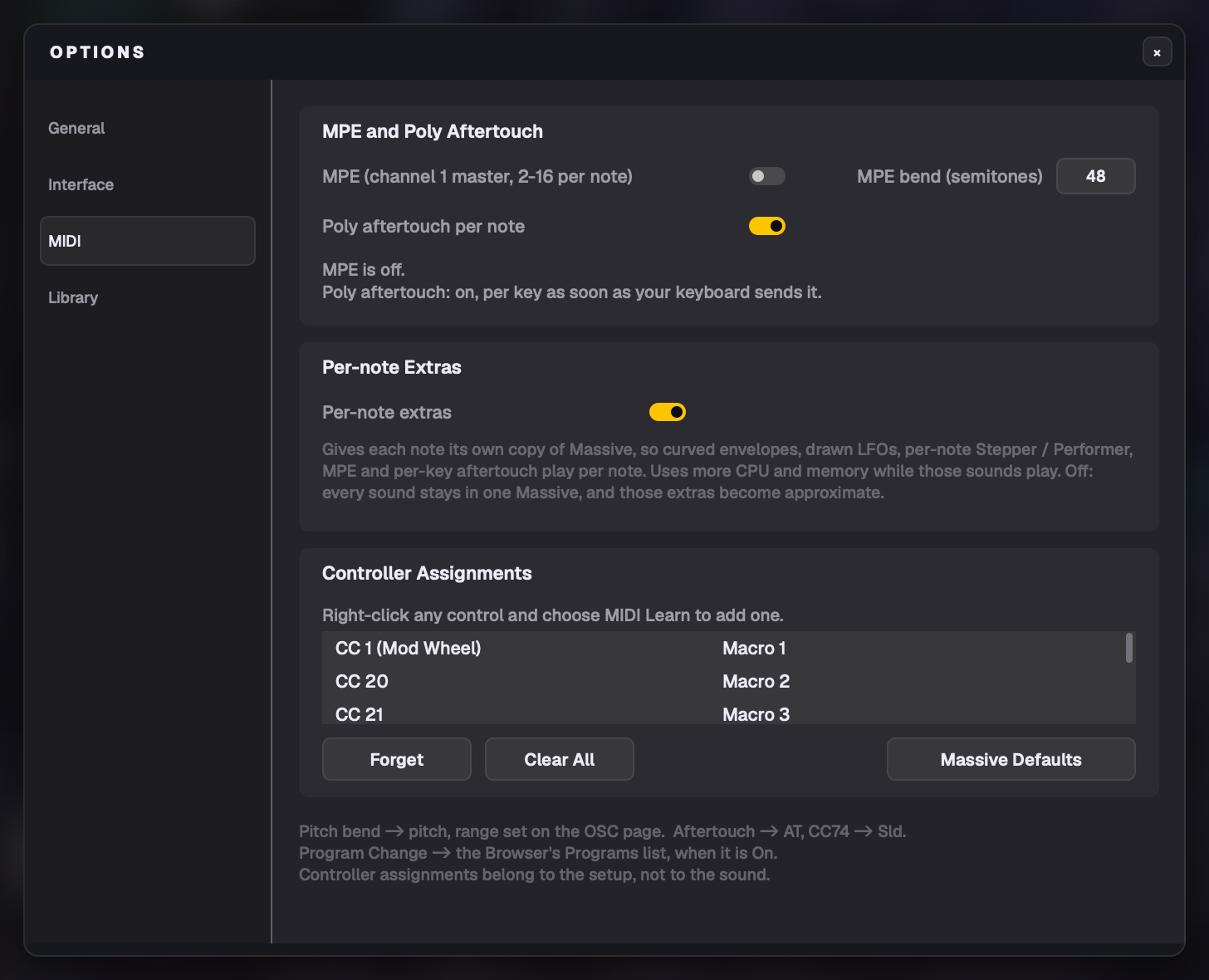
Assignments belong to your setup, not to the sound: loading sounds never changes them. They're listed in Options › MIDI (Controller Assignments), where you can remove them or go back to Massive Defaults (the mod wheel on Macro 1, CC 20–26 on Macros 2–8).
MIDI maps:SAVE MIDI in the Macro panel's header saves every assignment under a name (it starts as your controller's name). File › MIDI Maps: Load… (all assignments replaced), Save, Save As…, Delete…. The map you loaded last comes back at the next start. Maps live in Music › Gigantic › MIDI Maps.
The header's MIDI channel filter (All or 1–16) picks what Gigantic listens to.
Previous / next / random sound: the header's ◀ ▶ arrows and the dice learn too (right-click), so a controller's buttons step through the sounds or roll a random one. Every press counts, even from a button that sends no release. Hosts also see them as the parameters "Previous Sound", "Next Sound" and "Random Sound".
Your controller shows Gigantic's values: in Options › MIDI › Controller Feedback, turn on "Send control values to" and pick your controller's MIDI output. Each assigned control's value then goes back as its CC: all of them when a sound loads, then whenever one changes (your mouse, automation, Motion, another controller). Knobs send their position, switches 127 / 0, a menu or button group its current choice, so a controller with a screen (a Kontrol S MK3) shows what Gigantic is set to. It never sends back a control you're turning, and with several Gigantics open, the one you played or touched last sends. Off by default.
Komplete Kontrol S MK3
Gigantic comes with a template for Komplete Kontrol S MK3 keyboards: the macros on the first page, then the macro pad, the filter, the envelopes and more, with their names on the keyboard's screens. Buttons 6, 7 and 8 on every page load a random sound, the previous sound and the next sound.
The template puts Macro 2 on CC 116 rather than Massive's usual CC 20 (with CC 20, the keyboard lights its touch strip when a sound loads from its buttons), so it needs the Gigantic Kontrol S MK3 map, which Gigantic picks for you when it sees the keyboard.
When Gigantic sees an S MK3 keyboard and you have never chosen a MIDI map or Controller Feedback, it picks both for you once (the map below, and feedback to the keyboard's Main port) and says so in the Browser's status line. A choice you made yourself is never changed, including Restore Defaults or feedback turned off.
Load the template into the keyboard: in the Komplete Kontrol app, import Gigantic.kmt (it comes in the download, next to the installer) through its MIDI template import, then pick the Gigantic template on the keyboard.
Use the matching map in Gigantic (picked for you the first time, see above): File › MIDI Maps › Load… › Gigantic Kontrol S MK3. Gigantic installs this map in Music › Gigantic › MIDI Maps for you; it never overwrites one you've changed.
Optional, values on the keyboard: in Options › MIDI › Controller Feedback, turn on "Send control values to" and pick the keyboard's MIDI port, so its screens and lights follow the sound you load and the changes you make. The touch strip and mod wheel get no values back.
35MPE and poly aftertouch
Options › MIDI: MPE, poly aftertouch per note, per-note extras and your controller assignments.
MPE
Turn on MPE in Options › MIDI (off by default). In Polyphon mode each note then gets its own pitch bend, pressure (AT) and slide (the Sld source, CC74). The per-note bend range is 48 semitones by default. If an MPE controller is detected while MPE is off, Gigantic offers to turn it on, once per run; it never switches it on by itself.
Poly aftertouch per key
With a keyboard that sends polyphonic aftertouch, each key's pressure drives AT for that key's notes only, so AT on a filter opens key by key, even on a Massive preset's own AT routes. On by default (Options › MIDI); nothing changes until poly aftertouch arrives. Mono modes treat it as one AT.
All aftertouch is smoothed lightly (about 15 ms), so a sensor's wobble doesn't shake the sound.
36DAW use and automation
Projects keep everything: the whole sound, your wavetables, samples and noises, the KEY and the tempo Sync setting. A project opens the same anywhere Gigantic and Massive are installed.
Automation: every sound control, each envelope and each mod slot 5–8, plus the macro pad, Motion and the oscillator source extras, are automatable. Names follow what a knob does now ("FX1 Size" for a reverb).
Offline bounces follow macro automation block by block, as playback does.
The DAW keeps its keys: with Gigantic's window selected, your DAW's shortcuts and typing keyboard keep working; only a text field you're typing in takes the keys.
Your sounds at once: a new Gigantic in your DAW fills the header's sound list straight away.
Several Gigantics share their background work, and the × on a trial wavetable, sample or noise leaves it alone while another Gigantic plays it.
Mac: AU and VST3. A sound saved with one format opens on the other, with a note that it did.
The on-screen keyboard is hidden in the plug-ins by default: File › Show Keyboard.
37Gigantic FX
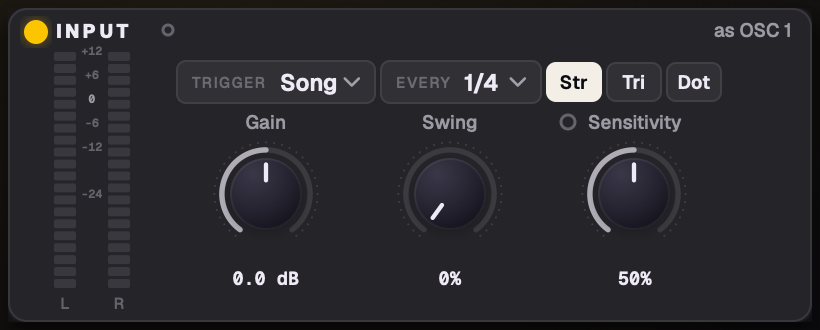
Gigantic FX: the Input panel in OSC 1's place and FX OUTPUT in OSC 2's.
Gigantic FX is a rhythmic movement effect: it makes any track pump, gate, sweep and throw in time with the song, with Massive's filters, inserts and effects (Gigantic's models of them) as its palette. Massive is hosted as ever: your track's audio is the source, played through a sound's filters, inserts, Feedback, FX and EQ, with its modulators moving to one Trigger. On a Mac it's an AU MIDI-controlled effect and a VST3 effect; on Windows a VST3 effect.
Any Massive preset works. Your audio takes the place of the sound's main oscillator (the one that's on with the highest Amp): its routing into the filters and its Amp, at full level, while the Amp's modulation still moves it. Everything after that is the preset's own. The preset itself is never changed. The Input panel shows which oscillator it replaces ("as OSC 2").
OSC 2, OSC 3, Noise and the Mod Osc sit under a veil ("Disabled in FX mode").
Init FX: a fresh Gigantic FX (and File › New Sound in it) has every module off and passes the track at its own level, so inserting it changes nothing until you dial something in. Until Massive has loaded, audio passes straight through: it never mutes your track.
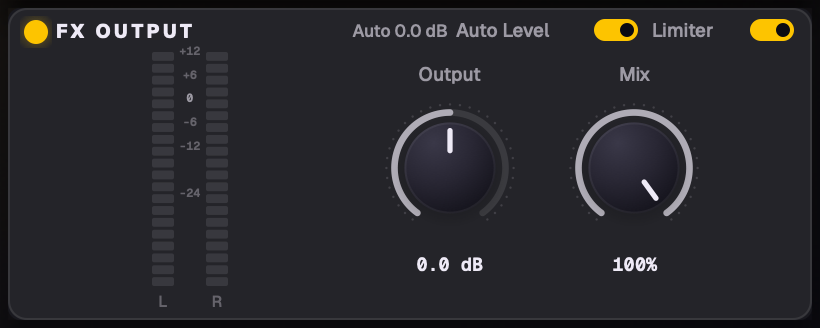
Input: meter, the Trigger, Gain, Swing and Sensitivity.FX OUTPUT: Output, Mix, Auto Level, Limiter.
Input panel
A stereo meter with peak hold, the main Trigger row, then Gain, Swing and Sensitivity (double-click: 0 dB / none / the middle). An LED by Sensitivity lights on each hit; the dot by the INPUT title pulses each time the Trigger fires.
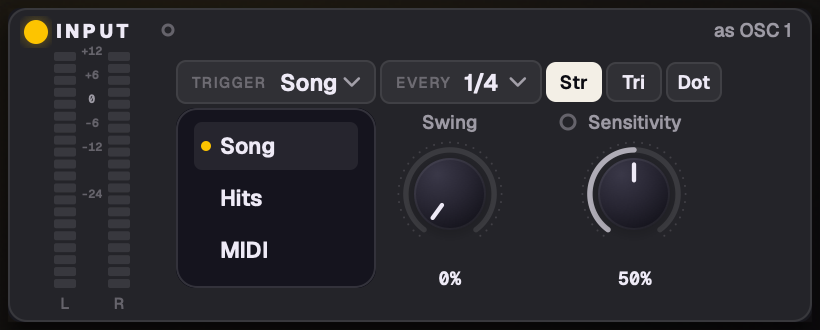
Trigger
The Input panel's Trigger: Song, Hits or MIDI.
One Trigger moves the whole effect. It sits in the Input panel and has three modes:
Song (the default): locked to your DAW's playhead, so a 1/4 pump always lands on the beat wherever you press play. With the transport stopped it keeps running at the song's tempo. The envelopes fire every grid value (1/32 to 2 Bars, Straight, Triplet or Dotted); Swing delays every other firing, up to half a step. LFOs, the Stepper and the Performer loop at their own synced rate, locked to the song and never restarted by the grid; the Stepper and Performer line up from bar 1, and their steps swing too.
Hits: everything restarts on each transient in your track: the envelopes fire, and the LFOs, Stepper and Performer start over. Sensitivity sets how loud a hit must be (it lights up only where Hits is used).
MIDI: the same on each note sent to Gigantic FX. Notes only trigger; they set no pitch.
Any modulator can have its own. Each envelope, LFO, Stepper and Performer page has a Trigger menu in its preset row: Main (the default) follows the Input panel; or pick its own Song (an envelope with its own grid value), Hits or MIDI. Example: duck the volume on Hits while a filter LFO loops on the song. A tab with its own trigger shows a small badge (HITS, MIDI, 1/8); tabs that follow Main show none.
Env 4 (the amp) is Open by default: the audio straight through, no ducking. Switch it to Duck on its page and it shapes the volume each time its trigger fires (a pump on Song, a gate on Hits). The knob dots and the envelope and LFO playheads move in Gigantic FX as they do when you play notes.
Older sounds made with the beta's per-envelope triggers load with the trigger most of their envelopes used as Main; any envelope that used another keeps it as its own.
FX OUTPUT
After everything the sound does, the only output meter: Output (±24 dB), Mix (dry / wet, the dry lined up so a blend never combs), Auto Level (on by default: a headroom trim that only turns down, keeping peaks under −1 dBFS) and the Limiter (on by default: a clean ceiling at −0.5 dBFS). These belong to that Gigantic FX, not to the sound: loading a preset never changes them.
Logic and Audio In. Logic's AU instruments can't take a sidechain input, so Gigantic FX is also how you get Audio In in Logic.
38Per-note extras, CPU and "Modeled"
A plain Massive sound plays 100% in Massive. Some of Gigantic's additions work per note, so Gigantic gives each note its own copy of Massive while a sound uses them: curved envelopes, drawn LFOs in a poly sound, per-note restarts, MPE, per-key poly aftertouch, and routes made in Gigantic from a per-note source. It does this automatically, only while a sound needs it, and switches only between notes so you never hear a jump.
Each note's copy keeps Massive's own filters and inserts; FX 1, FX 2 and the EQ run once on all the notes together.
Each copy costs roughly 1–2% of one CPU core while it plays; idle copies cost almost nothing.
Options › MIDI › Per-note extras: Off keeps every sound in one Massive. Lighter, but those extras become approximate.
The accent on a type menu
Massive can't take outside audio, so samples, grains, Audio In and your own wavetables and noises play through Gigantic's own versions of Massive's filters, inserts, Feedback, FX and EQ. Wherever Gigantic's version plays, that panel's type menu turns the accent colour (the EQ, with no menu, its title); its tip says "Gigantic's modeled version of Massive's …" and the open menu ends with "Modeled by Gigantic". In per-note mode the accent shows on FX 1, FX 2 and the EQ. Gigantic FX shows one "Modeled by Gigantic" note by the logo. The accent follows what plays, live.
In those cases, and in Gigantic FX, an envelope, LFO, Stepper or Performer routed onto an FX 1, FX 2 or EQ knob moves Gigantic's master chain just as a macro does. With several notes held, it follows the newest one.
Saving CPU
Quality High or Eco in the header (or Global page).
Per-note extras Off (Options › MIDI).
Live View off (Options › Interface): the screen work, not the sound.
Fewer voices or unison voices on the Voicing page.
Close Gigantic's window in your DAW when you're not using it: a closed Gigantic does less work on screen updates.
Gigantic's own voices spread over your computer's cores when a sound needs it, and Gigantic FX rests while its input and output are silent (from 2 seconds after both go quiet, with its window closed), waking on the first sound or MIDI note.
Part 7
Setup and files
Options, themes, saving and sharing, bug reports, updates, folders and answers.
39Options
File › Options… has four sections:
General
Default author name (and when to fill it in), Undo steps (1–100, 40 by default), the Welcome Screen (Show at Next Launch), and Updates: Check for updates, Check Now.
Interface
Tooltips and value tooltips on hover and drag; Controls: double-click types a value (off: resets), the mouse wheel turns knobs (on), the wavetable view opens in 3D; Live View: live modulation (dots and playheads) and filter curves; the Stepper key grid's labels (note names, numbers or scale degrees). Theme and Control Sensitivity are in the File menu.
MIDI
MPE (off), Poly aftertouch per note (on), Per-note extras (on), and your Controller Assignments (Remove, Clear All, Massive Defaults).
Library
Massive's content folder and plug-in, your Sound Folders (Add…, Remove, Rebuild Database), and Preview on hover (Map).
Options › General.Options › Interface.
40Themes and view size
File › Theme: four themes, switched live.
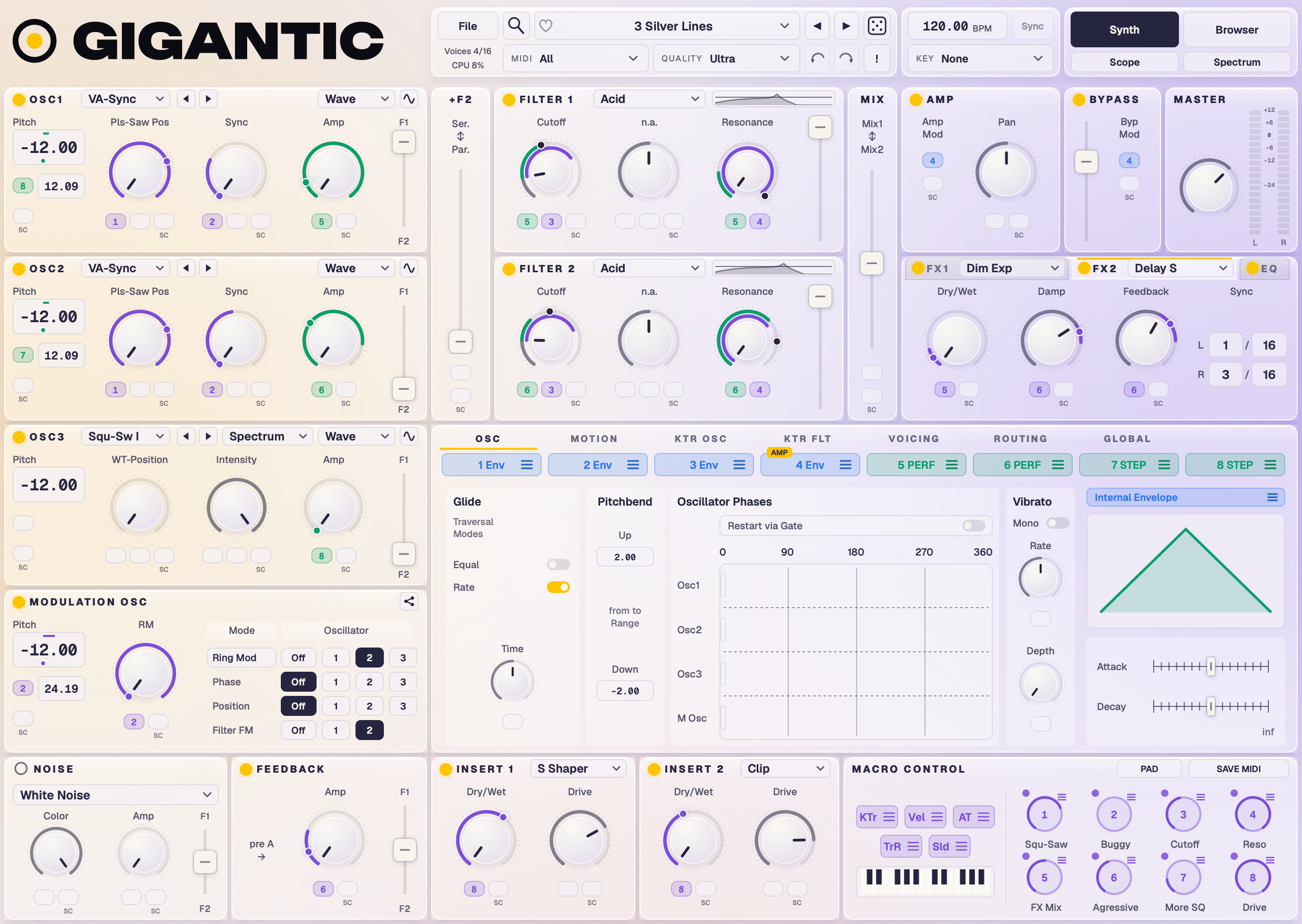
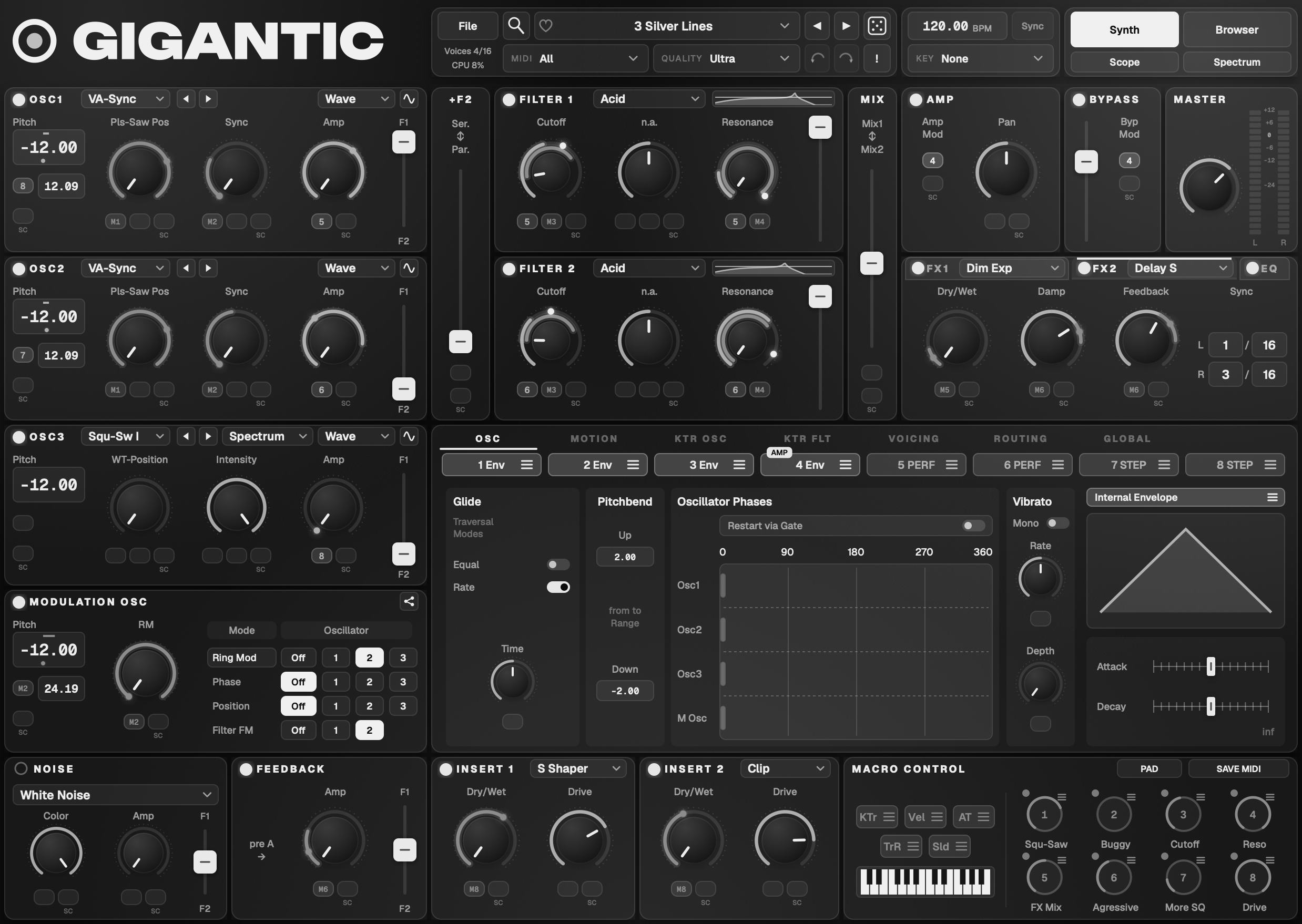
Dark: frosted glass over soft glows.Light: translucent white panels, warm yellow and lilac glows.Classic: cool grey-blue panels with bright yellow knobs.Mono: neutral greys, no colour; sources tell apart by grey and label (M1–M8, i5–i8).
File › View Size sets 75% to 200%. The window remembers its position and size.
41Audio and MIDI Settings (app)
In the standalone app, File › Audio and MIDI Settings… sets the output and input devices (each its own: the computer's microphone in, an interface out), the sample rate (44.1, 48, 88.2 or 96 kHz), the buffer size, a test tone and your MIDI inputs. They're remembered at the next start, and a device you chose that's unplugged is picked again when it's back. In a DAW, the DAW sets all of this.
42Saving and sharing sounds
Gigantic sounds (.gigantic) save everything Massive saves, plus every Gigantic addition. File › Save (Cmd+S) and Save As… (Shift+Cmd+S), which asks for the name, bank, type and comment. Your sounds go in Music › Gigantic › Sounds and show as "Your sounds" in the Browser.
Massive presets (.nmsv and .ksd) open directly, from the Browser or File › Open Sound…, including older and unusual ones. Massive's older .ksd sounds (in Native Instruments' Shared Content › Sounds › Massive) sit in the Browser like any other Massive sound, with their bank, author and Type / SubType / Mode in Massive's own terms, and open as Massive's own Import KSD Sound brings them in.
Sounds carry their samples and wavetables. Saving puts the sound's own samples, drawn or imported wavetables and noises inside the .gigantic file. Send the file to a friend or open it on another computer, Mac or Windows, and it comes back whole (into that computer's Music › Gigantic folders, never twice).
Page presets: the Envelope, LFO, Performer and Stepper pages have their own preset menus (Save, Delete), kept in Music › Gigantic.
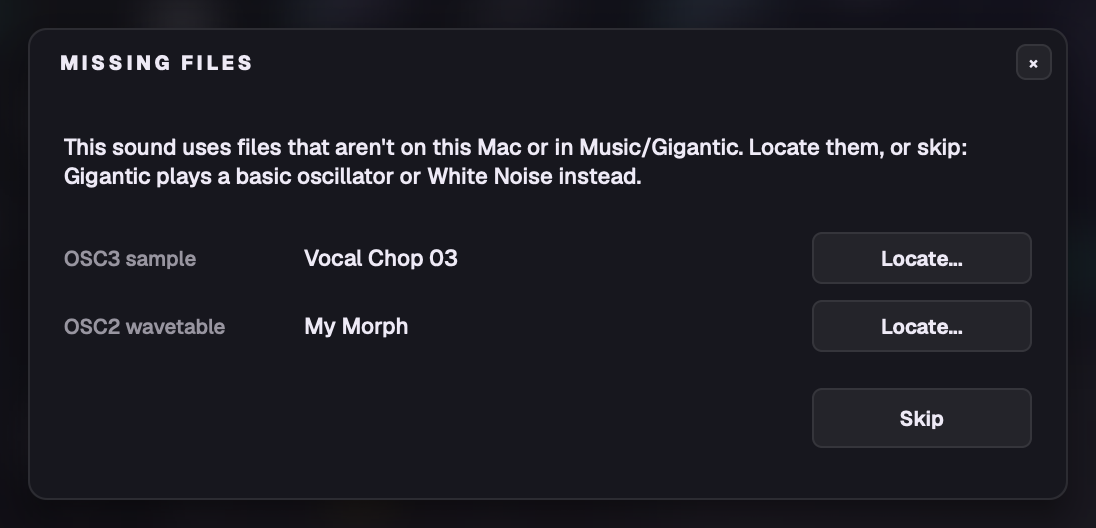
Missing files: Locate…
If a sound's sample, wavetable or noise can't be found, Gigantic first looks for it by name in Music › Gigantic, then lists what's still missing in one panel. Locate… each one (it comes in under the sound's name for it and plays at once, and its folder is searched for the others), or Skip (a basic oscillator or White Noise plays instead). This works for sound files, the Browser and DAW projects.
Missing files: Locate… or Skip.
43Report a Bug
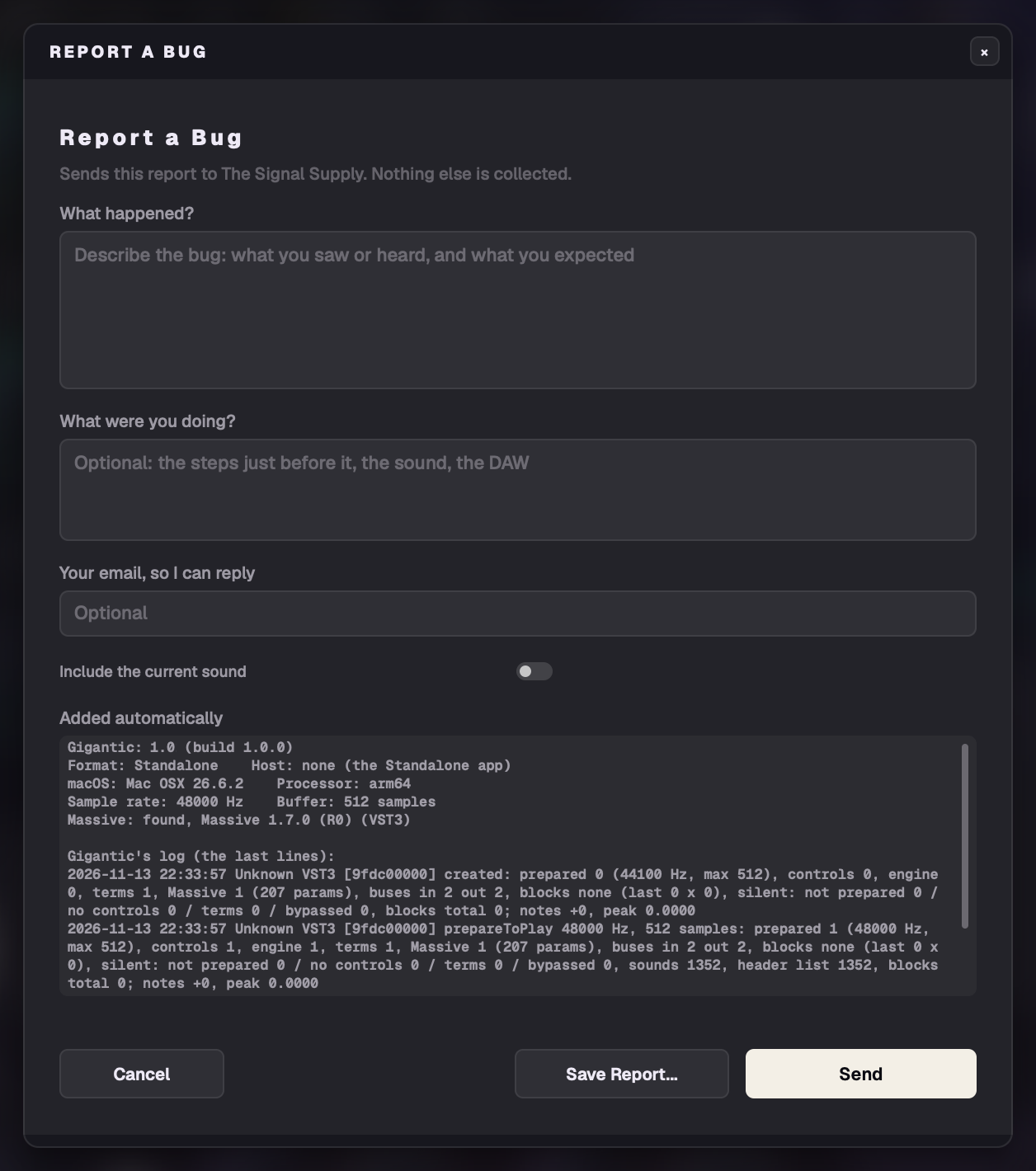
File › Report a Bug… (also in About):
Say what you did, what you expected and what happened instead.
About a particular sound? Tick Include the current sound (off unless you tick it).
Add your email if you'd like a reply (remembered on this computer only).
Click Send. It goes straight to The Signal Supply ("Sent, thanks!").
Everything added automatically is shown before anything leaves: Gigantic's version, the format and DAW, the system, the processor, the sample rate and buffer, whether Massive was found and its version, and the end of Gigantic's own log. Nothing else is collected.
Offline?Save Report… puts a .zip on your Desktop and shows it in the Finder (File Explorer), to send later.
After a crash, the app asks once, at the next start, whether to report it. In a DAW it never pops up: the File button gets a dot and the File menu an item instead.
Report a Bug.
44Updates and the weekly count
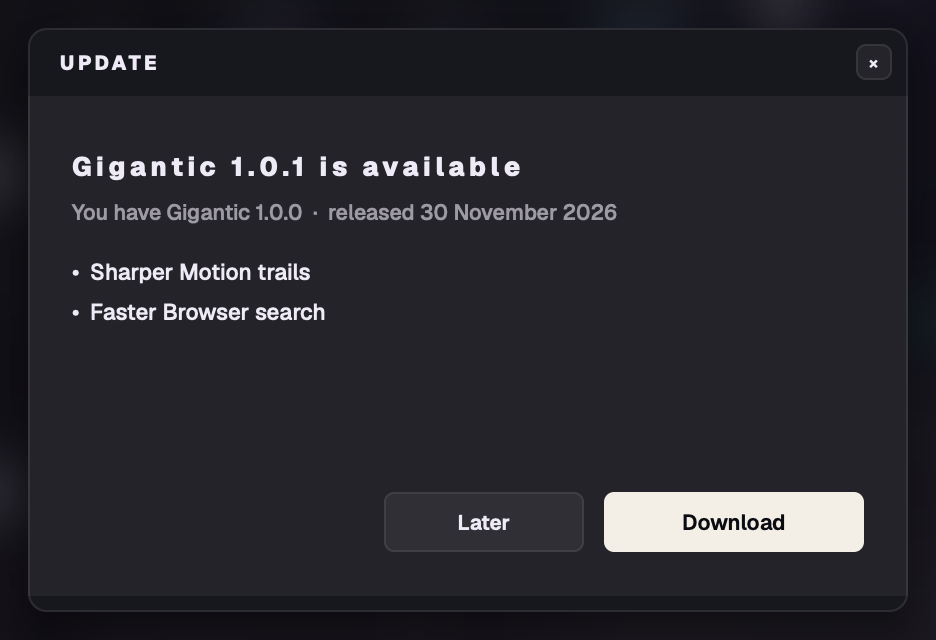
About once a week Gigantic reads a small file on The Signal Supply's site. If there's a newer version, the File button gets a dot and the File menu a "Gigantic 1.x is available" item at the top. It opens a small panel with what's new, Download (the new installers are also emailed to you, and the link in your order email always has the newest one) and Later (no dot until a newer one).
Gigantic never downloads or installs anything by itself and never pops up on its own. Run the new installer over the old one; your sounds and settings stay.
The same check adds one to an anonymous weekly count of copies by version, system and chip: no ID, nothing about you. It's how The Signal Supply sees how many people use Gigantic and whether they update.
Options › General › Updates:Check for updates turns both off; Check Now checks straight away. About shows "Up to date" or the version available.
The update panel.
45Where your files are
Gigantic keeps two folders. What you make is in your Music folder: back it up, and copy it to move to a new computer. Gigantic's own files are in the system's application data folder. Uninstalling leaves both. File › Help › Show Sounds Folder opens the first.
What
Mac
Windows
Your sounds, wavetables, samples, noises, page presets, MIDI maps
On a Mac, ~/Library is hidden: in the Finder, hold Option and open the Go menu. On Windows, type %APPDATA% into File Explorer's address bar. An earlier Gigantic kept everything in Music › Gigantic Host; the first start of this version moved it into the two folders above.
46Troubleshooting and FAQ
Does Gigantic need Massive?
Yes. Gigantic is a front end and host for your own licensed copy of Massive, installed and authorised, with its VST3. Massive makes the sounds.
Gigantic can't find Massive
Make sure Massive is installed and authorised in Native Access, with its VST3. Then use Locate Massive… and pick Massive's .vst3 (Mac: or .component). See First start.
Gigantic isn't in my DAW
Rescan your plug-ins or restart the DAW. Look under Signal Supply. In Logic, Gigantic FX is an Audio FX › MIDI-controlled effect. On Windows, check that C:\Program Files\Common Files\VST3 is in your DAW's plug-in folders.
Will Gigantic change my Massive presets?
No. Massive presets open as Massive opens them and play the same; everything Gigantic adds starts off. Gigantic saves its own .gigantic files and never writes to your Massive presets.
A sound doesn't match Massive
Please tell us: File › Report a Bug… with Include the current sound ticked.
No sound from the app
Open File › Audio and MIDI Settings…, check the output device and click the test tone. Check the header's MIDI channel is All (or your controller's channel) and your MIDI input is ticked.
My controller doesn't move anything
Right-click a control › MIDI Learn, then move the controller. Check the header's MIDI channel filter. Your assignments are in Options › MIDI.
The CPU is high
Try Quality High or Eco, fewer unison voices, or Per-note extras Off. See Per-note extras.
A sound says files are missing
Use Locate… in the Missing Files panel. Sounds saved now carry their own samples and wavetables, so this is mostly for older sounds.
How do I move to a new computer?
Install Gigantic and Massive there, then copy your Music › Gigantic folder across (Mac and Windows use the same layout).
Can I share a sound?
Yes: send the .gigantic file. It carries its own samples, wavetables and noises. Your friend needs Gigantic and Massive.
Does Gigantic phone home?
Only the weekly update check and anonymous count (version, system and chip), which Check for updates turns off, and bug reports you choose to send.
Windows says "Windows protected your PC"
Click More info › Run anyway.
Is there an Intel Mac version?
Gigantic runs on Intel Macs, but it's made and tested on Apple Silicon, and Intel isn't supported.
Where do I get help?
Hover over any control for a tip. This manual is in File › Help › Manual. For anything else, File › Report a Bug… or thesignalsupply.com/gigantic.
Gigantic is an independent product of The Signal Supply. It is not made, endorsed, sponsored or supported by Native Instruments. MASSIVE is a product of Native Instruments (inMusic NI GmbH); the name Massive is a registered trademark of Massive Audio Inc., USA. Native Instruments names are used only to describe compatibility.